Creating Your First Product All Editions
This walkthrough guides you through setting up and publishing your first product in FlexExt Store. Whether you are selling digital software downloads, downloadable audio/ebooks, or physical merchandise, FlexExt Store provides an intuitive tabbed workspace to configure pricing, inventory, tax rules, and technical specifications.
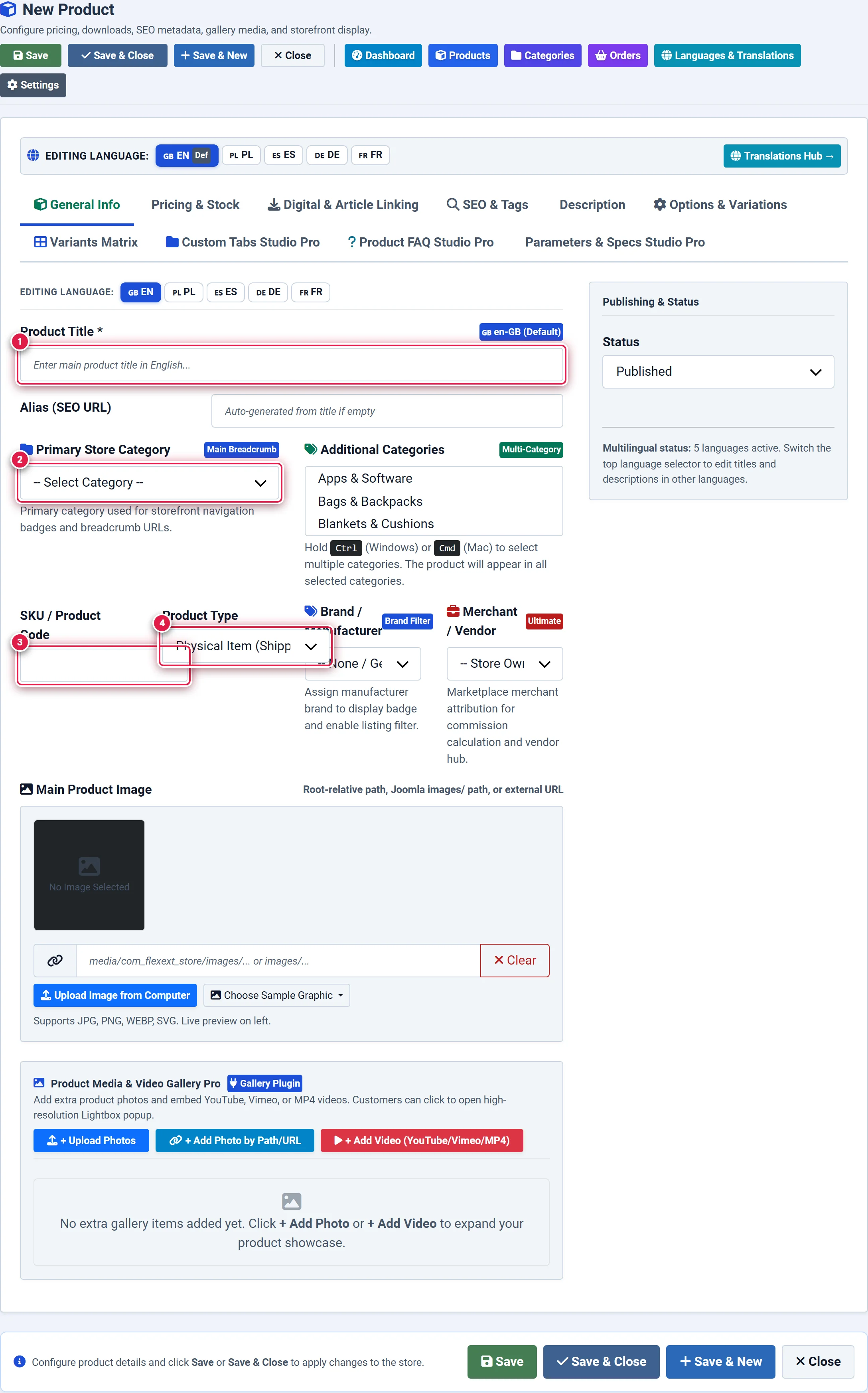
- Badge 1 — Product Title: The public customer-facing name of your item (e.g. Joomla Mega Menu Pro).
- Badge 2 — Category: Primary catalog classification assigning the product to navigation trees.
- Badge 3 — SKU (Stock Keeping Unit): Unique inventory code (leave blank for automatic
FLX-{ID}generation). - Badge 4 — Product Type: Fulfillment archetype governing shipping (
digital,physical, orsoftware).
Before you start
- Store Category: Ensure at least one product category exists (e.g. Digital Downloads or Joomla Extensions). The installer provides default categories.
- Product Assets: Prepare a title, short summary, detailed description, and a high-resolution product image (recommended: 800×800 px, WebP, PNG, or JPG).
- Pricing & Tax: Decide your base retail price and ensure your domestic tax rate is set under Store Settings.
Where to find it
Navigate to the product editor from the Joomla Administrator:
Components → FlexExt Store → Products → click + New Product
Or click + New Product directly from the top navigation bar of the Admin Dashboard.
Direct URL: administrator/index.php?option=com_flexext_store&view=product&layout=edit
Step-by-Step Creation Walkthrough
Enter General Information
On the General Information tab:
- Title (Badge 1): Enter the public name of your product (e.g. Joomla Mega Menu Pro).
- Category (Badge 2): Select the primary category from the dropdown tree.
- SKU (Badge 3): Enter a unique inventory code (e.g.
FLX-MM-01). If left empty, FlexExt Store automatically assigns a numeric SKU upon save. - Product Type (Badge 4): Choose the fulfillment archetype:
- Digital: For downloadable files (zip, pdf, mp3). Shipping calculations are automatically bypassed during checkout.
- Physical: For shippable goods requiring weight calculations and shipping carrier selection.
- Software: For software packages requiring automated license activation key generation.
Configure Pricing & Inventory
Switch to the Pricing & Stock tab:
- Regular Price: Enter your baseline retail price (e.g.
49.00). - Special / Sale Price: (Optional) Enter a discounted promotional price. When active, a
SALEbadge and strikethrough price display on the storefront. - Tax Class: Select standard or reduced VAT rate.
- Stock Quantity: Enter available units. For digital products with unlimited inventory, leave the default
1000or check Unlimited Stock.
Upload Product Media
Switch to the Description & Media tab:
- Primary Image: Click Select Image to upload or choose an image from Joomla's Media Manager.
- Short Description: Enter a 1–2 sentence teaser that will display on the storefront catalog grid cards.
- Full Description: Use the rich-text TinyMCE/JCE editor to provide technical specifications, feature lists, and installation instructions.
Attach Digital Files (For Digital Products)
If you selected the Digital product type, switch to the Digital & Article Linking tab:
- Under Downloadable File, upload your software archive (
.zip) or PDF document. - Set the Download Token Expiry (default: 30 days) and Max Download Attempts (default: 5 downloads).
Publish and Save
- In the right sidebar, verify that Status is set to Published.
- Click Save & Close in the top administrator toolbar.
You should see:
- A green confirmation notification:
Product successfully saved. - The new product appearing at the top of your Products Catalog list.
Essential Field Reference
| Field Name | Type | Default Value | Description |
|---|---|---|---|
| Title | Text | Required | The public customer-facing product name. |
| SKU | Text / Code | Auto-assigned | Unique stock keeping unit. |
| Category | Dropdown | Root | Primary classification in catalog navigation. |
| Product Type | Select | digital | Determines shipping requirement (digital, physical, software). |
| Price | Currency | 0.00 | Base selling price excluding or including tax based on settings. |
| Stock | Integer | 100 | Inventory balance. Physical items flag low stock when ≤ 5. |
| Status | State | Published (1) | Controls visibility on the public storefront. |
Storefront Verification
After saving your product, verify how it looks to prospective customers:
- Click View Storefront → in the top admin bar, or open your storefront URL:
index.php?option=com_flexext_store&view=products
- Locate your new product in the catalog grid.
- Verify that:
- The product title, primary image, and formatted price appear crisply.
- The Add to Cart button is active.
- Clicking the product card opens the comprehensive product detail page with description tabs.
Tips & Best Practices
If you leave the SKU field blank when creating a new product, FlexExt Store generates a clean identifier in the format FLX-{ID} automatically.
In the main Products list, you can reorder how products appear on the storefront using drag-and-drop handles without manually adjusting numeric sort orders.
Troubleshooting
Product Does Not Appear on Storefront
- Verify that the product Status is set to Published (
state = 1). - Check that the product's category is also published.
- If you have enabled Hide Out of Stock in Store Settings, ensure the product stock is greater than 0.
Image Appears Stretched or Blurred
FlexExt Store features configurable product image display modes (contain vs cover) in Store Settings → Catalog Display. Choose Contain with a clean neutral background color for technical software thumbnails.