Tab 3: Digital & Article Linking Configuration
The Digital & Article Linking tab (#digital) connects electronic assets (software archives, e-books, MP3 audio, PDF guides, license packages) to products and establishes native relationships with Joomla Content Articles.
1. Overview
From the Digital & Article Linking tab, store administrators configure:
- Encrypted Digital Asset Assignment: Attach files stored in secure server directories to product records.
- Download Token Expiration: Set maximum validity periods (e.g., 30 days) for time-limited digital access.
- Download Attempt Limits: Enforce maximum download counts per purchase to prevent unauthorized link sharing.
- Joomla Content Article Linking: Link any published Joomla Article to render comprehensive manuals or technical specifications directly within the product layout.
2. Before You Start
- Upload Files: Place digital asset packages (
.zip,.pdf,.mp3,.tar.gz) into the protected storage directory (/media/com_flexext_store/downloads/or/storage/download/). - Product Type: Set Product Type to Digital in the General Info tab.
3. Where to Find It
- Open the Product Editor (
index.php?option=com_flexext_store&view=product&layout=edit&id=1). - Click the third tab in the navigation bar: Digital & Article Linking (
#digital-tab).
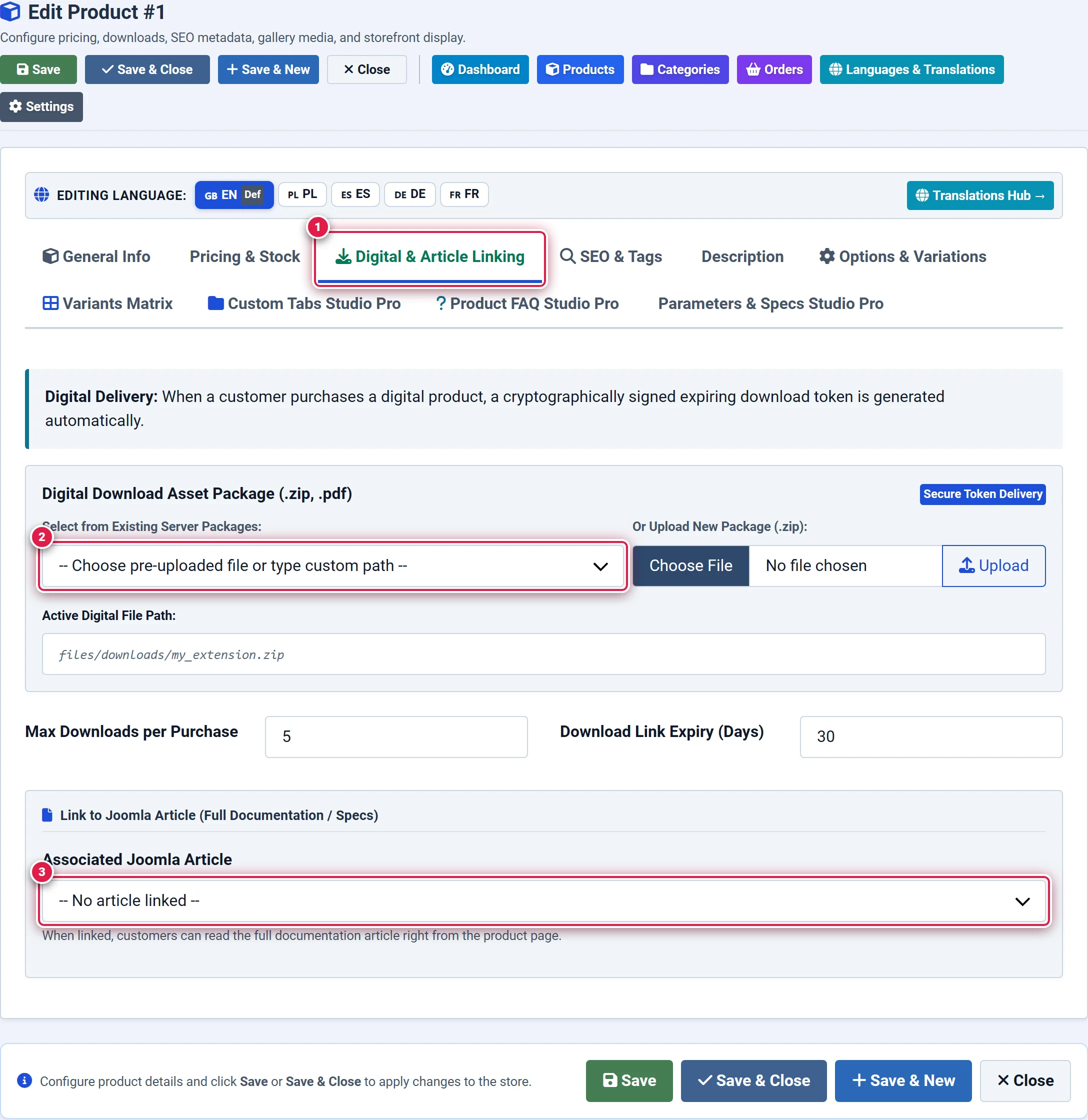
- Badge 1 — Digital & Article Linking Tab: Activates electronic delivery assets and Joomla article linking settings.
- Badge 2 — Digital Download File Association: Selects the protected asset archive, download count limits, and token validity windows.
- Badge 3 — Joomla Content Article Integration: Links a native Joomla CMS article to render full technical manuals directly in the product layout.
4. Step-by-Step Configuration
Selecting a Digital Download Asset
In the Digital Download File dropdown (select[name="digital_file"]), choose the pre-uploaded archive from the list of available files.
You should see: File size and checksum information are automatically verified.
Setting Download Constraints
Configure download governance rules:
- Download Limit: Enter maximum allowed downloads per license (e.g.,
5). Set to0for unlimited. - Token Expiry (Days): Enter number of days download links remain valid (e.g.,
365). Set to0for lifetime access. You should see: Download links generated upon purchase will enforce these cryptographic token constraints.
Linking a Joomla Content Article
In the Associated Joomla Article dropdown (select[name="article_id"]), select an existing article from com_content.
You should see: The full rendered content of that article will automatically embed into a dedicated "Documentation" or "User Guide" tab on the storefront.
Saving the Configuration
Click Save in the top action bar. You should see: The product is now configured for automated instant post-purchase delivery.
5. Field Reference
| Field | Description | Default | Notes & Limits | Edition |
|---|---|---|---|---|
| Digital Download File | Associated download package archive | None | Basic: 1 file; Pro/Ultimate: unlimited | Basic / Pro |
| Download Limit | Max download attempts per order | 0 (Unlimited) | Blocks download once limit reached | Basic |
| Token Expiry Days | Number of days link remains active | 0 (Lifetime) | Returns 403 Forbidden after expiry | Basic |
| Associated Article | Joomla content article (com_content) | None | Embeds article body into product | Basic |
6. Storefront & Customer Delivery
When a customer purchases a digital product:
- Upon payment confirmation (e.g. Stripe, PayPal, or admin approval), a unique cryptographically signed download token is generated.
- The customer receives an automated order email containing a secure download button.
- The customer can access and re-download the file at any time from their My Account ➔ Downloads & Licenses portal on the storefront.
- Direct web access to the raw file path is blocked by
.htaccess/ Nginx server directives; all files stream exclusively through the secure OpenCart/Joomla download controller.
7. Tips & Best Practices
Instead of maintaining separate product manuals, write them as standard Joomla Articles. When linked to a product, any updates to the Joomla Article immediately reflect on the product page without having to re-edit the product.
Never upload commercial digital download packages directly into public webroot directories (e.g. /images/ or public HTML folders). Always store them in the designated protected storage directory to prevent unauthorized hotlinking.
8. Troubleshooting
| Symptom | Probable Cause | Recommended Resolution |
|---|---|---|
| Customer receives "Download Token Expired" error | The configured Token Expiry Days period has elapsed | In Order Details, administrator can generate a fresh token or reset the expiry date. |
| Customer reaches download limit unexpectedly | Browser download managers opened multiple simultaneous connections | Increase Download Limit or reset download counter in customer order view. |
| Digital file dropdown is empty | No files exist in /media/com_flexext_store/downloads/ | Upload .zip or .pdf archives to the downloads directory. |
9. Related Documentation
- Tab 1: General Info: Verify that Product Type is set to Digital.
- Orders Manager: Monitor download token usage and customer download logs.
- License & Activation: Manage software product activation keys.