Tab 2: Pricing & Stock Configuration
The Pricing & Stock tab (#pricing) manages inventory economics, physical warehouse counts, minimum purchase thresholds, and dynamic quantity-based pricing structures.
1. Overview
From the Pricing & Stock tab, store administrators configure:
- Pricing Matrix: Base Selling Price, Promotional Special Price, and Internal Cost Price.
- Inventory & Stock Management: Real-time stock counter and "Out of Stock" threshold triggers.
- Order Quantity Thresholds: Min and Max order quantity limits per checkout.
- Back-in-Stock Notifications (Pro): Automated customer email alerts when inventory is replenished .
- Tiered Volume Pricing (Ultimate): Quantity-break discount tables (e.g. 10+ items = 10% off) .
- B2B Wholesale Group Pricing (Ultimate): Dedicated net pricing per customer group (e.g. Wholesalers, Distributors, VIP) .
2. Before You Start
- Currencies & Taxes: Configure your default store currency and tax rules in Store Settings.
- Customer Groups: For B2B pricing, ensure customer groups are configured in Joomla User Groups.
3. Where to Find It
- Open the Product Editor for any product (
index.php?option=com_flexext_store&view=product&layout=edit&id=1). - Click the second tab in the navigation bar: Pricing & Stock (
#pricing-tab).
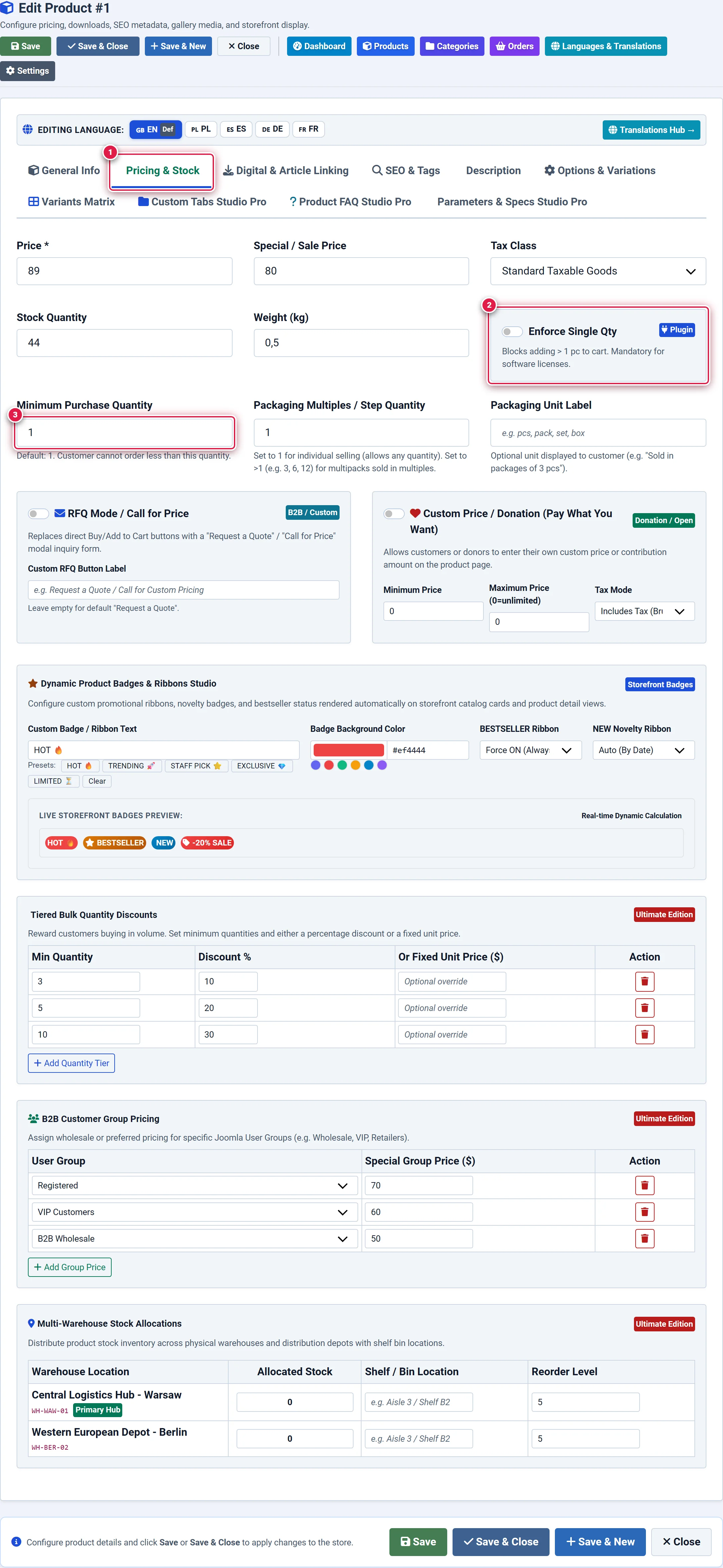
- Badge 1 — Pricing & Stock Tab: Activates the inventory economics, price structure, and quantity limits workspace.
- Badge 2 — Primary Pricing Card: Configures Selling Price, Special Discount Price, and Internal Cost Margin.
- Badge 3 — Inventory Controls & Min/Max Limits: Configures physical stock counters, out-of-stock thresholds, and min/max order quantity enforcements.
4. Step-by-Step Configuration
Configuring Selling and Special Price
Enter the standard retail price in Selling Price. If running a temporary promotion, enter the discounted rate in Special Price. You should see: On the storefront, the base price will display with strike-through styling alongside a prominent "SALE" badge.
Setting Inventory Stock Level
In the Stock Quantity field, enter the available physical units (e.g., 150).
You should see: When stock reaches 0, the product automatically transitions to "Out of Stock" status, preventing cart checkout if backorders are disabled.
Enabling Back-in-Stock Alerts (Pro Commercial)
Toggle Enable Back-in-Stock Email Subscriptions to Yes. You should see: When an item is out of stock, storefront visitors see a "Notify Me When Available" button that collects their email address.
Configuring Volume Discount Tiers (Ultimate Enterprise)
In the Tiered Volume Pricing table, click + Add Tier. Enter the minimum quantity, maximum quantity, and discounted unit price or percentage discount. You should see: A volume pricing breakdown table appears on the storefront product page showing quantity discount breaks.
5. Field Reference
| Field | Description | Default | Notes & Limits | Edition |
|---|---|---|---|---|
| Selling Price | Base gross selling price | 0.00 | Supports 28 ISO currencies | Basic |
| Special Price | Discounted promotional price | Empty | Overrides base price when set | Basic |
| Cost Price | Internal wholesale purchase cost | 0.00 | Visible only to administrators | Pro / Ultimate |
| Stock Quantity | Numerical inventory counter | 100 | Decrements on successful checkout | Basic |
| Min Order Qty | Minimum allowable cart quantity | 1 | Enforces bulk order minimums | Basic |
| Max Order Qty | Maximum units allowed per order | None | Prevents hoarding / reseller sweep | Basic |
| Back in Stock Alerts | Email notification sign-up for 0 stock | Disabled | Automatic replenishment email | Pro / Ultimate |
| Volume Tiered Pricing | Quantity-break discount table | None | Unlimited quantity tiers | Ultimate |
| B2B Group Pricing | Role-based pricing matrix | None | Overrides price per user group | Ultimate |
6. Storefront Result
- In-Stock Item: Displays live stock indicator (e.g., "150 in stock" or "In Stock"), standard quantity selector, and active Add to Cart button.
- Out-of-Stock Item: Replaces Add to Cart with an "Out of Stock" notification and, if enabled in Pro, a "Notify Me" email subscription input.
- Volume Tiers (Ultimate): Automatically renders a clear discount breakdown table:
- Buy 5–9: $45.00 each (Save 10%)
- Buy 10+: $40.00 each (Save 20%)
7. Tips & Best Practices
Always populate the Cost Price field. The built-in Reports Studio (Components → FlexExt Store → Reports) uses cost price to calculate gross margins, net revenue, and profitability KPIs.
If your store allows backorders, ensure the global setting in Store Settings ➔ Inventory is set to "Allow Backorders". Otherwise, products with 0 stock cannot be added to cart.
8. Troubleshooting
| Symptom | Probable Cause | Recommended Resolution |
|---|---|---|
| Tiered Pricing table does not display on storefront | Active license tier is Basic or Pro | Volume tiered discounts require Ultimate Enterprise edition. Upgrade license key to unlock. |
| Customer cannot purchase more than 5 items | Max Order Qty is set to 5 | Check and adjust the Max Order Qty field in the Pricing & Stock tab. |
| "Notify Me When Available" button missing | Item is still in stock or Pro feature is disabled | Verify that Stock Quantity is 0 and Back in Stock Alerts is toggled to Yes. |
9. Related Documentation
- Tab 1: General Info: Configure basic product title and category.
- Tab 7: Variants Matrix: Manage stock and prices for individual variant combinations.
- Store Settings: Taxes: Configure statutory VAT and sales tax classes.