Orders Management & Fulfillments
The Orders Manager (view=orders) is the commercial operational engine of FlexExt Store. It centralizes order processing, payment verification, digital token distribution, shipping fulfillment, and fiscal invoicing in a high-density, accessible interface.
1. Overview
From the Orders Management suite, store administrators and fulfillment teams can:
- Monitor Real-Time Transactions: High-density table tracking order numbers, buyer names, email addresses, order totals, and timestamps.
- Track Dual-State Lifecycles:
- Fulfillment Status:
New(Info),Processing(Primary),Completed(Success),Cancelled(Secondary) . - Payment Status:
PAID(Success badge),PENDING(Warning badge),FAILED(Danger badge) .
- Fulfillment Status:
- Corporate & B2B Profile Auditing: Automatic detection and prominent highlighting of corporate accounts (Company Name, Tax ID / European VAT ID) for compliant invoicing .
- Digital License & Asset Governance: Inspect signed download tokens, token expiration windows, and active customer download attempt counters.
- Custom Checkout Field Capture: Review dynamic custom fields captured during one-page checkout (e.g. delivery date preferences, gift messages, PO numbers).
- Printable Fiscal Documents (Pro): Generate printable A4 VAT Invoices with vector QR codes and warehouse picking/packing slips with a single click .
2. Before You Start
- Store Currency & Tax Setup: Verify default currency symbol, ISO code, and tax rates in Store Settings ➔ General & Currencies.
- Company Invoice Details: Configure your legal entity name, address, Tax ID / VAT number, bank name, and IBAN in Store Settings ➔ Company & Invoices so that generated invoices comply with legal reporting requirements.
- Email Notifications: Ensure Joomla Global Configuration mail settings (PHP Mail, Sendmail, or SMTP) are verified so customers receive order confirmations and delivery tokens.
3. Where to Find It
- In the Joomla Administrator menu, navigate to:
Components ➔ FlexExt Store ➔ Orders Manager
- Direct URL:
administrator/index.php?option=com_flexext_store&view=orders
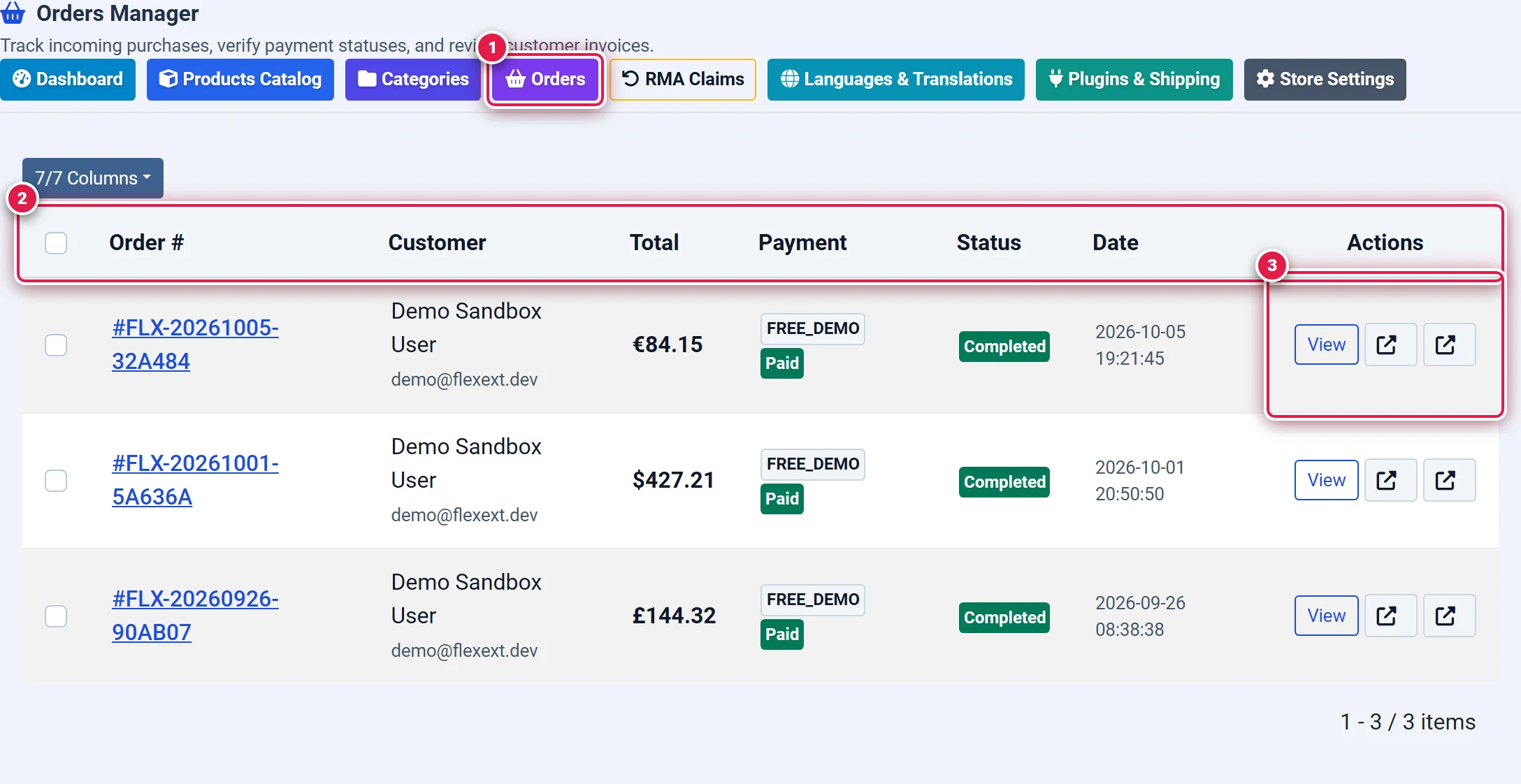
- Badge 1 — Orders Manager Toolbar Navigation: Quick-navigation bar providing instant shortcuts to Dashboard, Products Catalog, Categories, Orders, RMA Claims, Languages, Plugins, and Store Settings.
- Badge 2 — Transactions Ledger Table: Comprehensive columns showing Order Number (
#FLX-YYYYMMDD-XXXXXX), Customer Name & Email, Formatted Total Amount, Payment Method Badge, Status Pill, and Creation Date. - Badge 3 — Instant Document Quick Actions: Action buttons on each row providing one-click access to View Order Details, Print VAT Invoice (PDF icon), and Print Warehouse Packing Slip (Box icon).
4. Step-by-Step Order Fulfillment Walkthrough
Locating New Incoming Orders (Badge 1)
Navigate to Orders Manager (view=orders). Incoming orders appear at the top of the table sorted chronologically. Orders awaiting fulfillment display with the blue New or Processing status badge.
You should see: Customer names, payment gateway method (e.g., STRIPE, PAYPAL, BANK_TRANSFER), and order gross totals formatted in their respective purchase currency.
Opening the Detailed Order Record (Badge 3)
Click the Order Number link (e.g., #FLX-20261005-32A484) or click the blue View button in the Actions column.
You should see: The full two-column Order Detail workspace (view=order&id=X) opens with line items on the left and customer details on the right.
Auditing Items and Digital Delivery Tokens
Review the purchased items table. If the order contains downloadable digital products (software, audio, PDFs), inspect the Digital Delivery column.
You should see: Download counters (e.g., Downloads: 0) and the active encrypted token slug (e.g., a7f9b2c4...).
Updating Order Status and Triggering Automated Notifications
In the right sidebar under Payment Information, locate the Update Order Status selector (form[action*='updateStatus']). Select the new workflow stage:
- Processing: Warehouse is picking and packaging goods.
- Completed / Paid: Payment is captured; physical package dispatched; digital download tokens permanently activated.
- Cancelled: Order aborted; inventory counts automatically restored. Click Update. You should see: The page refreshes with the updated status badge, and an automated HTML receipt with download tokens is dispatched to the customer.
Generating Fiscal Invoices and Packing Slips
Under Invoices & Packing Slips in the right column, click:
- Print / Download VAT Invoice: Opens a print-ready fiscal invoice with line-item VAT breakdown and verification QR code.
- Print Warehouse Packing Slip: Opens a warehouse pick-list omitting prices for packing staff.
5. Order Details Deep-Dive Workspace
When opening any individual order record, the screen splits into two specialized management zones:
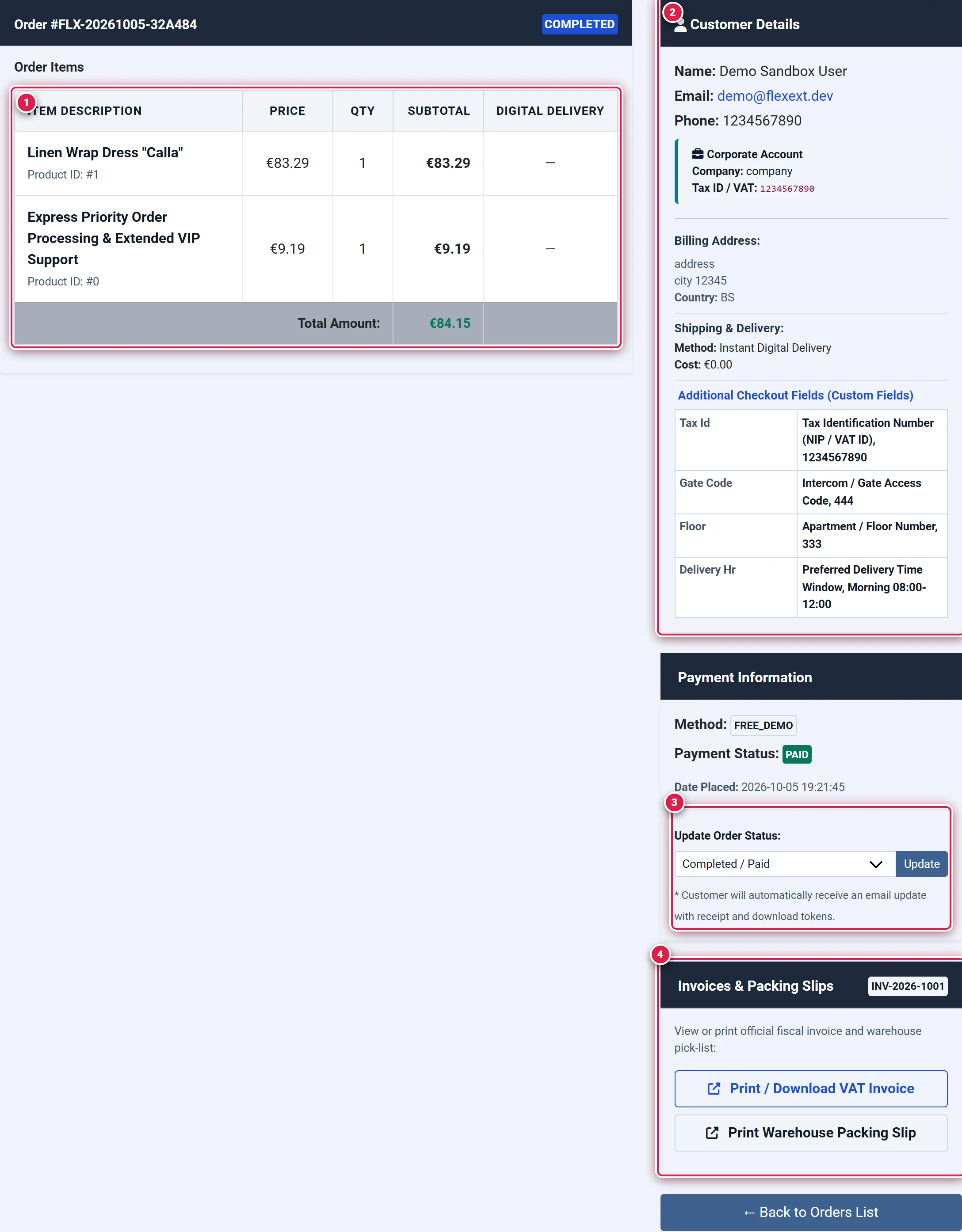
- Badge 1 — Purchased Line Items & Digital Delivery: Detailed product breakdown with SKU codes, unit prices, purchased quantities, line subtotals, order gross sum, and cryptographic download token inspection.
- Badge 2 — Customer Profile & Corporate Billing Details: Customer contact info, dedicated Corporate Account alert box (Company Name & European VAT/Tax ID), billing address, shipping method, and customer notes.
- Badge 3 — Order Status Transition Engine: Interactive workflow dropdown (
Completed / Paid,Processing,Pending,Cancelled) with automated transactional email triggers and download token refresh. - Badge 4 — Fiscal Invoicing & Warehouse Packing Slips: Action station generating official PDF/Print VAT invoices and warehouse pick-lists with vector QR code verification.
6. Field & Status Reference
Order Status Lifecycle
| Status | Badge Color | Trigger Condition | System Action | Edition |
|---|---|---|---|---|
| New | info | Customer completed checkout; payment pending or confirmed | Initial order record created in database | Basic |
| Processing | primary | Payment verified; goods being gathered or manufactured | Notification sent to customer | Basic |
| Completed / Paid | success | Package shipped or digital asset delivered | Download tokens activated; receipt emailed | Basic |
| Cancelled | secondary | Customer request, fraudulent activity, or timeout | Stock inventory restored; tokens revoked | Basic |
Payment Status States
| State | Badge Color | Description |
|---|---|---|
| PAID | success | Gateway confirmed transaction authorization and capture |
| PENDING | warning | Awaiting bank transfer clearance, COD delivery, or asynchronous webhook |
| FAILED | danger | Card decline, insufficient funds, or gateway cancellation |
7. Fiscal Invoicing & Packing Slips (Pro & Ultimate)
FlexExt Store includes an integrated fiscal invoicing generator:
- Vector QR Codes: Invoices feature an embedded QR code containing cryptographic payment/verification data compatible with European banking apps (EPC QR, Polish QR, Swiss QR).
- Code128 Barcodes: Packing slips include machine-readable Code128 barcodes representing order numbers for barcode scanner integration in warehouses.
- Automatic Email Attachment: When an order transitions to Completed, the VAT invoice PDF is automatically attached to the customer's completion email.
- Tax Breakdown: Compliant multi-rate VAT breakdown tables (e.g. 23%, 8%, 5%, 0%, Reverse Charge).
8. Troubleshooting & Best Practices
When a business customer enters a valid European VAT ID, the order summary automatically flags the transaction with a prominent Corporate Account alert. The VAT invoice automatically marks the tax row as Reverse Charge (Odwrotne obciążenie) if cross-border intra-community rules apply.
To ensure fiscal compliance and audit readiness, purchased line items and monetary totals in existing orders cannot be arbitrarily edited after checkout. If a customer requires an item exchange or return, use the RMA Claims Manager (view=rma) to issue an authorized refund or credit note.