Tab 1: General Info Configuration
The General Info tab (#general) is the primary configuration screen for every product in FlexExt Store. It defines foundational identity attributes including the product title, URL routing alias, catalog category, operational product type, selling price, and inventory SKU.
1. Overview
From the General Info tab, store administrators configure:
- Product Title & Multilingual Localization: Set product titles with one-click switching across all active languages.
- URL Alias & Canonical Routing: Define SEF-friendly URL route slugs.
- Taxonomy Category Assignment: Assign the product to its home category in the catalog tree.
- Product Type: Choose between Physical Goods, Digital Download, or Virtual Service.
- Selling Price & SKU: Enter the base selling price and warehouse tracking code.
2. Before You Start
- Category Prerequisite: At least one active category must be created in Categories Manager.
- Joomla User Permissions: Requires
core.editorcore.createprivileges oncom_flexext_store.
3. Where to Find It
- In the Products List, click + New Product or click the title of an existing product.
- The Product Editor opens with the General Info tab active by default.
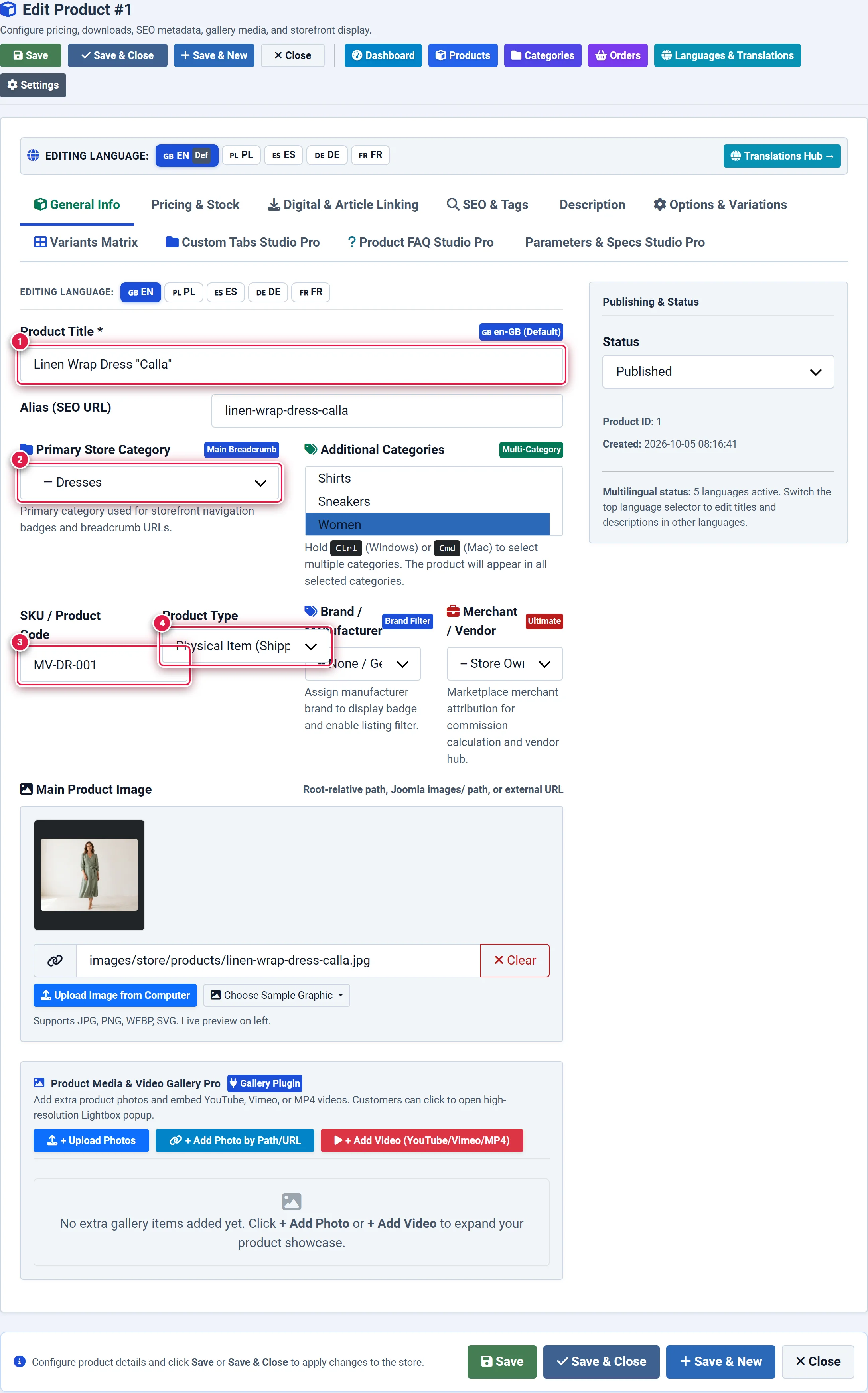
- 1 — Product Title: Localized product name with language indicator and auto-generated SEF URL alias (
#jform_title). - 2 — Primary Store Category: Root category determining storefront breadcrumbs and navigation (
#jform_category_id). - 3 — SKU / Product Code: Internal warehouse stock-keeping unit inventory identifier (
#jform_sku). - 4 — Product Type: Archetype selector (
Physical Item,Digital Download, orVirtual Service) (#jform_type). - 5 — Save Toolbar Action: Primary action button saving all product parameters to the database (
button.button-apply).
4. Step-by-Step Configuration
Entering Product Title and Alias (Badge 1)
Click the Title input field (marked 1) and type the official name of the product. The Alias field auto-generates from the title. If desired, customize the alias to optimize search keywords (e.g., ergonomic-office-chair).
You should see: The alias populates automatically in lowercase with hyphens.
Assigning Catalog Category (Badge 2)
Open the Primary Store Category dropdown (marked 2). Select the primary category where this product should reside in the store navigation. You should see: The selected category determines the storefront breadcrumb path.
Configuring Inventory SKU (Badge 3)
In the SKU / Product Code field (marked 3), enter your internal warehouse stock-keeping unit (e.g., CHAIR-BLK-01). If left empty, FlexExt Store assigns a unique numeric SKU automatically upon saving.
You should see: The identifier appears in order manifests and warehouse picking slips.
Selecting Product Type (Badge 4)
In the Product Type selector (marked 4), choose:
- Physical: Requires shipping address and weight calculation during checkout.
- Digital: Grants access to encrypted file downloads upon successful payment.
- Service / Virtual: Non-shippable item requiring no parcel delivery (e.g., consultations, gift cards). You should see: The type badge updates in the top status bar.
Saving the Product (Badge 5)
Click the green Save button in the top toolbar (marked 5) to persist your changes, or Save & Close to return to the catalog list. You should see: A green Joomla system message confirms: "Product saved successfully."
5. Field Reference
| Field | Description | Default | Notes & Limits | Edition |
|---|---|---|---|---|
| Title | Localized product name | Required | Multilingual (EN, PL, ES, DE, FR) | Basic |
| Alias | URL route slug | Auto-generated | Must be unique per category | Basic |
| Category | Primary store category | Top-level | Determines navigation and breadcrumbs | Basic |
| Product Type | Physical, Digital, or Service | physical | Affects checkout shipping requirement | Basic |
| Selling Price | Base retail price | 0.00 | Supports 28 ISO currencies | Basic |
| Special Price | Discounted promotional price | Empty | Triggers "SALE" badge on cards | Basic |
| SKU | Stock Keeping Unit identifier | Optional | Indexed for quick admin search | Basic |
| Status | Published / Unpublished state | Published (1) | Unpublished items return 404 to guests | Basic |
| Featured | Featured product promotion flag | No (0) | Highlights card with "FEATURED" pill | Basic |
| Brand | Manufacturer / Brand assignment | None | Filterable on catalog bar | Pro / Ultimate |
6. Storefront Result
Once published, the product appears in its assigned category grid with:
- High-resolution product title and category link.
- Formatted retail price (or strike-through base price if Special Price is defined).
- Instant "Add to Cart" or "Select Options" button.
7. Tips & Best Practices
Click the language pills (EN, PL, ES, DE, FR) located above the title field to input native translated names without leaving the editor. If a language field is left blank, FlexExt Store automatically falls back to the default store language.
Do not create two products with identical aliases within the same category. Duplicate aliases will result in Joomla router ambiguities and unexpected redirect behavior.
8. Troubleshooting
| Symptom | Probable Cause | Recommended Resolution |
|---|---|---|
| Product is not accessible via direct URL | Status is set to Unpublished or parent category is unpublished | Ensure both the product and its parent category are published (green checkmark). |
| Alias field displays special characters error | Alias contains invalid URL symbols (e.g. ?, &, #) | Use only lowercase alphanumeric characters and hyphens. |
| Customer is prompted for shipping address on digital goods | Product Type is set to Physical instead of Digital | Change Product Type to Digital and save. |
9. Related Documentation
- Tab 2: Pricing & Stock: Configure inventory levels, bulk tiered discounts, and B2B pricing.
- Tab 3: Digital & Article Linking: Attach downloadable files to digital products.
- Categories Manager: Create and organize store category trees.