Placing & Processing Your First Order All Editions
Testing the full transaction lifecycle — from browsing the storefront catalog to completing payment and verifying administrative fulfillment — ensures your payment gateways, tax calculation rules, and automated customer emails are functioning seamlessly.
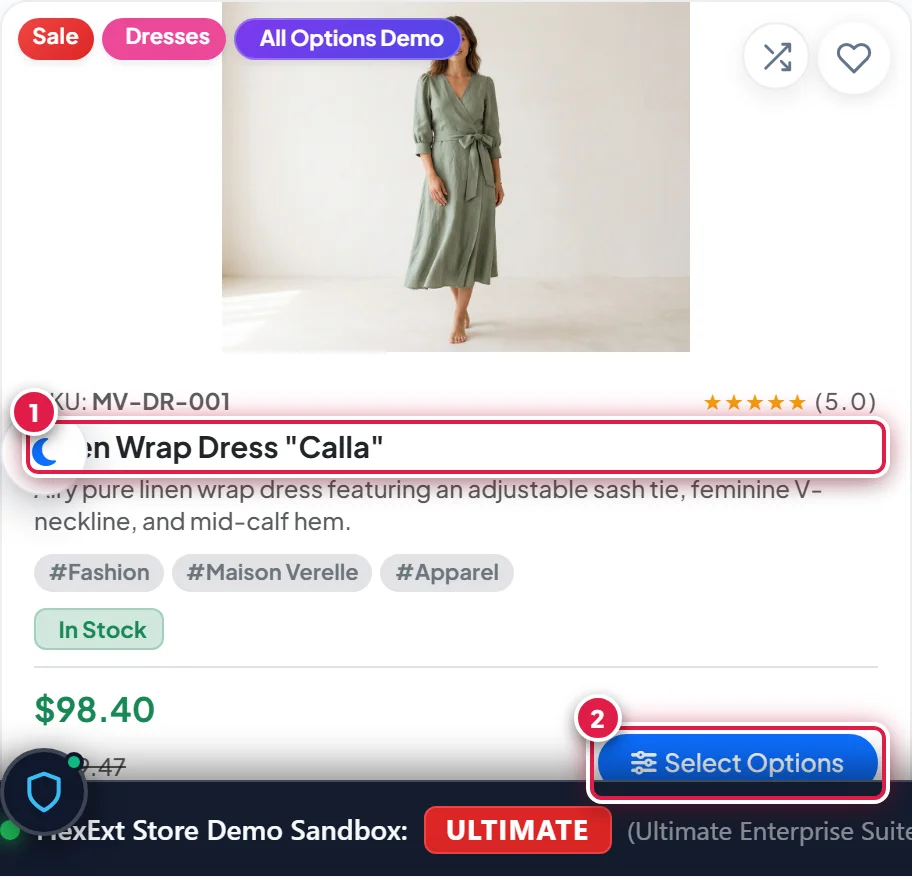
- Badge 1 — Catalog Product Card & Title: Displays the product thumbnail, category badge, and product title in the responsive catalog grid.
- Badge 2 — Add to Cart / Select Options: Instant action button that triggers the slide-out AJAX cart drawer or opens product option choices.
Before you start
- Published Product: Ensure you have published at least one product with price >
0.00and stock >0. - Active Payment Method: Ensure at least one payment method is enabled in Components → FlexExt Store → Plugins & Add-ons (such as Bank Transfer / Offline for zero-cost testing, or Stripe Test Mode).
- Use an Incognito Browser Tab: To test authentic guest checkout without interfering with your active administrator session, open your site in an incognito or private browsing window.
Customer Storefront Experience
Browse the Catalog and Add to Cart
Open your store catalog:
https://your-domain.com/index.php?option=com_flexext_store&view=products
Find your test product card (Badge 1) and click Add to Cart (Badge 2) (or Select Options if your product requires size, license type, or variant choices).
You will see:
- A quick visual confirmation toast.
- The slide-out AJAX Cart Drawer opening smoothly from the right side of the screen.
- The header cart badge updating with item count and subtotal.
Review Cart and Proceed to Checkout
In the cart drawer, review your selected items and quantities. Click the primary Proceed to Checkout button.
Complete the Single-Page Checkout
FlexExt Store features a streamlined, high-converting single-page checkout:
- Customer Information: Enter an email address (e.g.
[email protected]), first name, last name, and phone number. Choose whether to check out as a guest or create an account. - Billing & Shipping Address: Enter street address, postal code, city, and country. Tax rates adjust dynamically based on your destination country.
- Shipping Method: (Only for physical products) Select standard or express courier. For digital products, shipping is automatically omitted.
- Payment Method: Select your test payment gateway (e.g. Offline Transfer or Credit Card (Stripe Test)).
- Terms & Consent: Check the required agreement checkboxes (Terms of Service, Privacy Policy).
Place the Order
Click Place Order & Pay.
Upon successful submission:
- The customer is redirected to the Order Confirmation page.
- An order reference number is displayed (e.g.
#FLX-10042). - For digital downloads, instant secure download links with expiring token shields are displayed immediately on screen.
- A confirmation email with the order summary and PDF invoice attachment is dispatched to the buyer.
Admin Order Management Workflow
Once the order is placed, switch back to your Joomla Administrator to inspect and fulfill it:
Locate the Order in the Admin Dashboard
Open Components → FlexExt Store → Dashboard.
In the Recent Customer Orders table, your test order will appear at the very top with timestamp, customer name, total amount, and current status (paid or pending).
Open the Full Order Record
Click the blue View Details → button next to the order (or navigate to Components → FlexExt Store → Orders).
On the order details screen, you can inspect:
- Customer Dossier: IP address, buyer email, customer notes, user ID or Guest tag.
- Ordered Line Items: Product title, SKU, quantity, unit price, tax breakdown, and any chosen product options.
- Payment Transaction: Gateway transaction ID, currency, and payment timestamps.
- Fulfillment Timeline: Complete audit log of order creation, payment capture, and status updates.
Update Order Status
To update the order status (e.g. from pending to paid or shipped):
- Locate the Order Status dropdown in the right sidebar.
- Select Completed or Shipped.
- (Optional) Check Notify Customer by Email to automatically send a status update notification.
- Click Save.
Order Status Reference
FlexExt Store tracks orders across standardized lifecycle states:
| Status Code | Badge Color | Meaning & Customer Impact |
|---|---|---|
pending | Yellow | Order created but payment is awaiting capture or bank wire clearance. |
paid | Green | Payment captured successfully. Digital download tokens activate automatically. |
completed | Green | Order fully fulfilled and closed. |
shipped | Blue | Physical goods have been handed to courier with tracking reference. |
cancelled | Red | Order voided by administrator or abandoned. |
refunded | Red | Payment returned to buyer. Associated download tokens and licenses are revoked. |
Tips & Best Practices
When testing Stripe payments in Test Mode, use standard test card number 4242 4242 4242 4242 with any future expiration date and any 3-digit CVC code.
If an order's status is changed to cancelled or refunded, FlexExt Store automatically invalidates all expiring download tokens and deactivates any generated software license keys for that order.
Troubleshooting
Customer Does Not Receive Confirmation Email
- Check System → Global Configuration → Server → Mail in Joomla to verify that your mailer (SMTP, PHP Mail, or Sendmail) is working. Use the Send Test Mail button to test.
- Check the spam or junk folder of the recipient email address.
Digital Download Link Returns "Token Expired"
- In the admin order view, inspect the Digital Downloads tab. You can regenerate new download tokens or increase the maximum download count with a single click.