Categories Management & Hierarchy Studio All Editions
The FlexExt Store Categories Manager provides a structured, visual environment to build multi-level catalog hierarchies, assign custom brand accent colors, select vector icons from a 170+ built-in library, configure rich hero banners with live storefront previews, and optimize category landing pages for search engines.
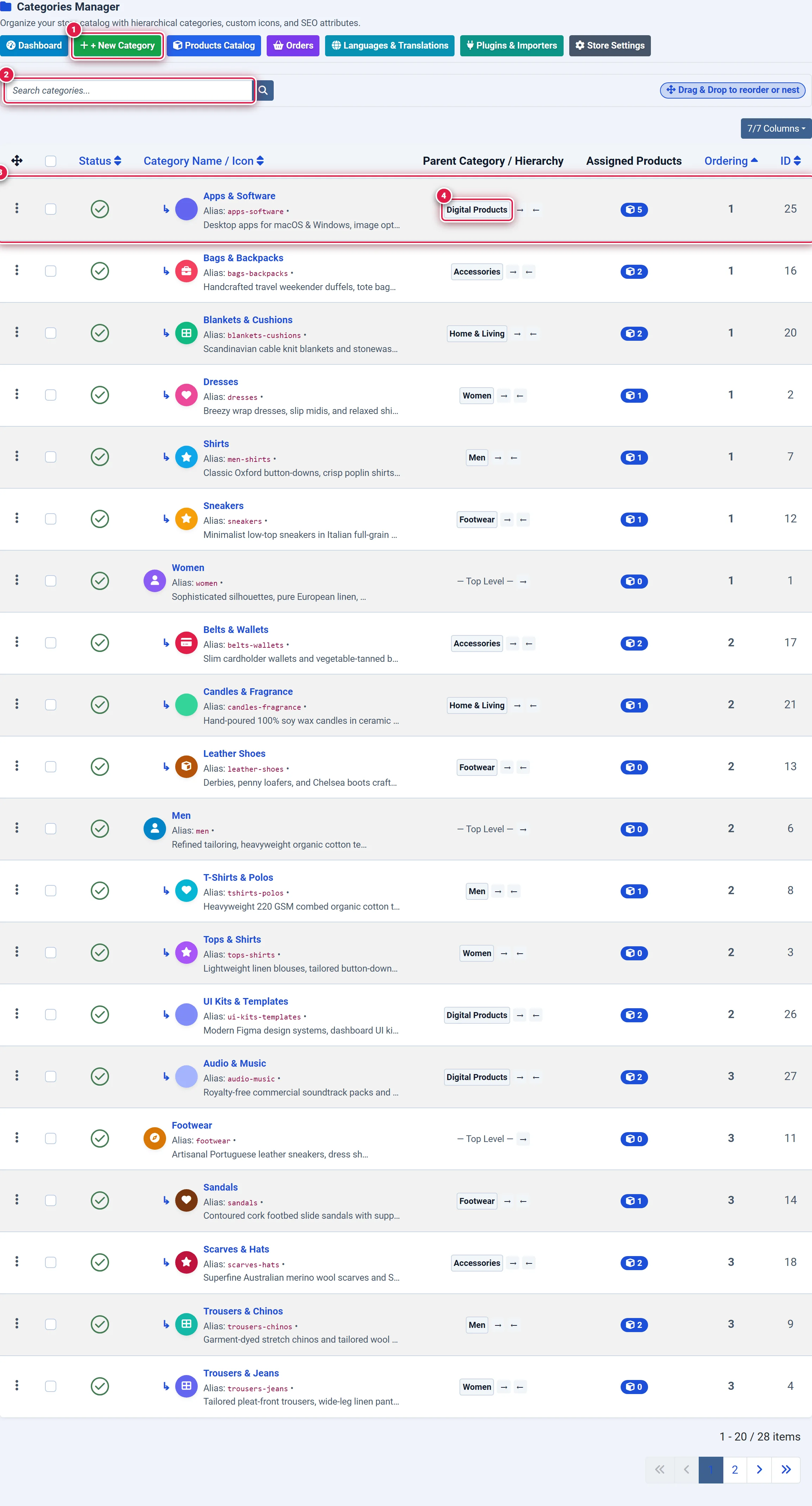
- Badge 1 — Create New Category Shortcut: Quick action button in the top navigation bar to open the category creation form.
- Badge 2 — Search & Filter Bar: Instant search input filtering categories by title or alias, alongside state, access level, and language filters.
- Badge 3 — Hierarchical Category Row & Reorder Handle: Displays category indentation depth, status badge, title, SEO alias, parent name, and drag-and-drop reorder handles.
- Badge 4 — Assigned Product Inventory Count: Real-time counter badge indicating how many active catalog products are currently assigned to each category.
Before you start
- User Permissions: Requires Joomla Administrator access or a User Group with
core.manageandcore.editpermissions forcom_flexext_store. - Edition Availability: The complete category management engine — including unlimited nesting, custom color accents, icon library, and SEO controls — is available in all editions (Basic Starter, Pro Commercial, and Ultimate Enterprise).
- Unlimited Nesting Depth: FlexExt Store supports unlimited parent-child subcategory nesting, allowing you to organize complex department stores or clean single-category software catalogs.
Where to find it
Navigate to the category manager from the Joomla Administrator:
Components → FlexExt Store → Categories
Direct URL: administrator/index.php?option=com_flexext_store&view=categories
Category List & Hierarchy Workbench
The categories list table provides full control over catalog organization:
1. Top Quick Action Toolbar (Badge 1)
- + New Category: Opens the category editor to create a new category (
view=category&layout=edit). - Dashboard: Direct shortcut back to the Admin Dashboard.
- Products Catalog: Jumps to the full Products List.
- Orders: Opens sales order management (
view=orders). - Languages & Translations: Translation workbench for multilingual strings (
view=settings&tab=translations). - Plugins & Importers: Manage payment gateways and add-ons (
view=plugins). - Store Settings: Global store parameters and defaults (
view=settings).
2. Search & Filtering Toolbar (Badge 2)
Quickly isolate specific categories in extensive catalog trees:
- Search Input: Matches alphanumeric characters across Category Title, Alias, and Description. Press Enter or click the magnifying glass to filter. Click Clear to reset.
- State Filter: Filter by Published, Unpublished, or All.
- Access Level Filter: Restrict listing to specific Joomla View Access Levels (e.g. Public, Registered, Special, B2B Wholesale).
- Language Filter: Display categories assigned to specific content languages or All.
3. Categories Hierarchy Table (Badge 3)
- Drag & Drop Ordering: Hover over the vertical grip icon (
:::) on the left of any row to reorder categories visually. Reordering updates the frontend catalog menu and sidebar filter sequences instantly. - Visual Icon & Accent: Each row renders its configured brand color dot and category icon (font icon or custom SVG).
- Indentation Depth: Child subcategories are indented with visual tree guides (
— Subcategory Name) indicating parent-child relationships. - Assigned Products Badge (Badge 4): Shows the exact count of assigned products (e.g.
6 Products). Clicking the badge filters the Products List to only show items in that category. - Inline Publishing Toggle: Click the green checkmark or red circle to toggle category publication state instantly via AJAX.
4. Batch Operations Modal
Select multiple category checkboxes and click Batch in the top toolbar to perform bulk updates:
- Set Parent Category: Move or copy selected categories to a new parent branch.
- Set Access Level: Batch assign access permissions (e.g. restrict whole category to Wholesale buyers).
- Set Language: Batch assign content language tags.
Category Editor Configuration
Clicking + New Category or selecting an existing category row opens the dedicated Category Editor:
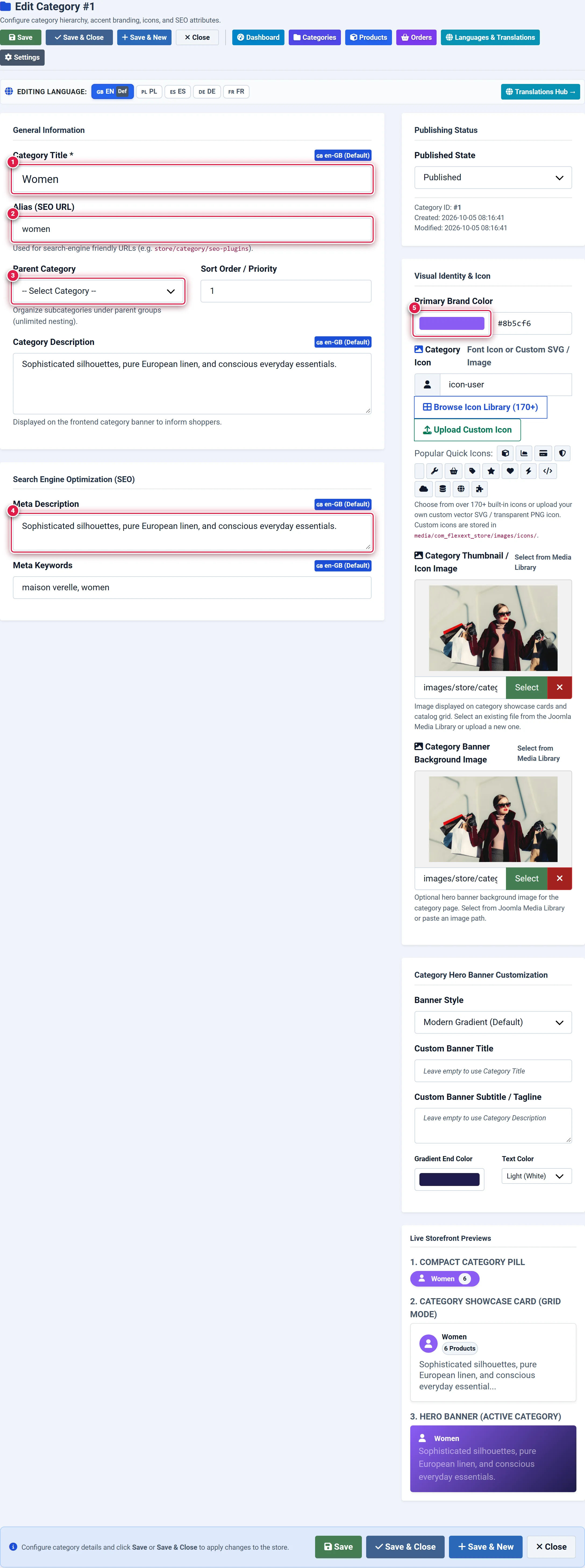
- Badge 1 — Category Title & Language Translation Pills: Category title with one-click language switcher pills (
en-GB,pl-PL,es-ES,de-DE,fr-FR). - Badge 2 — SEO Friendly URL Alias: Clean search-engine friendly slug used in store URLs (e.g.
store/category/payment-gateways). - Badge 3 — Parent Category Tree Selector: Dropdown selector supporting unlimited hierarchy levels with circular nesting prevention.
- Badge 4 — SEO Meta Description & Keywords: Search engine summary (under 160 characters) and comma-separated meta keywords.
- Badge 5 — Category Brand Color & Icon Customizer: Interactive HTML5 color picker, hex code input, 170+ icon library browser, and custom vector SVG/PNG uploader.
Field Specifications Reference
| Field Name | Type | Required | Default | Source & Technical Notes |
|---|---|---|---|---|
| Category Title | Text / Multilingual | Yes | — | Public name of the category. Supports localized tabs for each installed Joomla language. |
| Alias | Text (URL Slug) | No | Auto | URL slug. If left blank, Joomla automatically generates a sanitized slug from the title. |
| Parent Category | Dropdown Tree | No | Root (- None -) | Assigns category under an existing parent. Prevents assigning a category as its own child. |
| Sort Order | Number | No | 0 | Numerical priority sequence. Lower numbers display first in navigation trees. |
| Category Description | Textarea / Multilingual | No | Blank | Displayed on category landing pages and hero banners to inform shoppers. Supports translations. |
| Meta Description | Textarea / Multilingual | No | Blank | Search engine snippet (recommended 120–160 chars) injected into <meta name="description">. |
| Meta Keywords | Text / Multilingual | No | Blank | Comma-separated keyword list injected into <meta name="keywords">. |
| Published State | Select | Yes | Published (1) | Determines whether the category and its landing page are visible on the public storefront. |
| Primary Brand Color | Color / Hex | No | #0d6efd | Primary accent color applied to badges, category cards, hero banners, and hover states. |
| Category Icon | Text / File | No | icon-cube | Icon identifier (e.g. icon-cube) or custom SVG file path in media/com_flexext_store/images/icons/. |
| Category Thumbnail | Media Field | No | Blank | Image displayed on category showcase cards and catalog navigation grids. Select from Media Library. |
| Category Banner Image | Media Field | No | Blank | Large hero banner background image for the category landing page. |
Category Hero Banner Studio Pro
Every category includes a customizable Hero Banner Studio Pro rendered at the top of its storefront catalog page, with real-time live preview cards right inside the editor:

- Badge 1 — Hero Banner Style Selector: Choose between 5 distinctive visual styles (Modern Gradient, Glassmorphism, Dark Navy, Image Cover, Minimalist).
- Badge 2 — Custom Banner Title & Subtitle: Override default title and description with high-converting marketing taglines.
- Badge 3 — Interactive Real-Time Storefront Previews: Instant visual simulation showing the Compact Category Pill, Showcase Card (Grid Mode), and Hero Banner as you configure colors.
Available Hero Banner Styles
- Modern Gradient (Default): Dynamic linear gradient transitioning from the category brand color (
jform_color) to the customizable gradient end color (banner_bg_color2) at a 135° angle. - Glassmorphism / Frost: Modern semi-transparent frosted glass backdrop with subtle blur (
backdrop-filter: blur(12px)) and delicate white borders, perfect for contemporary themes. - Sleek Dark Navy: High-contrast, premium dark background (
#0f172a) with glowing accent iconography tailored for technology, developer tools, and luxury products. - Image Cover with Tint: Uses your uploaded Category Banner Background Image with an adjustable gradient color overlay to guarantee WCAG AA text legibility regardless of image contrast.
- Minimalist Compact: Clean, whitespace-optimized banner layout without heavy backdrops, focusing shoppers immediately on the product grid.
Step-by-Step: Creating a Category Tree
Step 1: Open the Category Creation Form
From the Joomla Administrator, go to Components → FlexExt Store → Categories and click + New Category (or click + New Category in the Dashboard top bar).
Step 2: Configure Name, Alias, and Hierarchy
- Enter the public name in Category Title (Badge 1), e.g. Joomla Extensions.
- If this is a subcategory, select its parent from the Parent Category dropdown (Badge 3), e.g. Software.
- Leave Alias (Badge 2) empty for automatic SEO slug generation, or enter a custom slug.
Step 3: Add Multilingual Translations (Optional)
If your Joomla installation has multiple content languages installed (e.g. Polish, Spanish, German, French):
- Click the respective language pill above the title field (e.g.
🇵🇱 pl-PL). - Enter the localized Category Title, Description, and SEO meta tags.
- FlexExt Store automatically switches storefront content according to the visitor's active language without creating duplicate category IDs.
Step 4: Set Visual Branding & Custom Icon
- Select a Primary Brand Color (Badge 5) using the color picker or hex input (e.g.
#16a34afor green). - Click Browse Icon Library (170+) to choose from built-in vector icons, or click Upload Custom Icon to upload a company SVG or transparent PNG.
- Verify your choices in the Live Storefront Previews box (Badge 3 on screenshot 03).
Step 5: Save & Verify
Click Save & Close in the top action toolbar.
You should see:
- A green confirmation message: Category saved successfully.
- The category appearing in the Categories Manager table at its appropriate tree depth.
- The new category immediately available in the product editor's Primary Category dropdown.
Tips & Best Practices
Always reorder categories using the drag handles on the list table rather than manually editing numerical sort values. Dragging updates relative order indices cleanly without creating gaps or duplicate sort numbers.
When configuring custom gradient colors in the Hero Banner Studio, use the Text Color selector (Light (White) or Dark (Navy)) to ensure text contrast meets WCAG AA standards (minimum 4.5:1 ratio against background).
Category landing pages automatically emit self-referencing canonical <link rel="canonical"> tags and OpenGraph meta cards, preventing duplicate content penalties when products belong to multiple categories.
Troubleshooting
Subcategories Disappear When Parent is Unpublished
If child categories do not render on the storefront catalog despite being marked Published, verify that their Parent Category is also published. FlexExt Store automatically cascades parent publication states to prevent orphaned storefront links.
Circular Hierarchy Error on Save
If saving a category fails with a hierarchy validation alert, ensure you are not assigning a category as a child of itself or one of its own descendants. The parent dropdown automatically filters out descendants to prevent circular reference loops.