Tab 10: Parameters & Specifications Studio
The Parameters & Specs Studio Pro tab (#parameters) configures structured technical specifications (e.g. Processor, Screen Size, Bluetooth Version, Battery Life, Dimensions). Beyond displaying clean spec sheets, these attributes power the store's high-speed Faceted Catalog Filter.
1. Overview
From the Parameters & Specs Studio tab, store administrators configure:
- Technical Attribute Assignment: Assign attributes from global parameter libraries to specific products.
- Group Categorization: Organize attributes into logical specification groups (e.g., Display, Hardware & Performance, Connectivity & Ports, Dimensions & Weight).
- Measurement Units: Standardize units (e.g.,
GHz,GB,cm,kg,W,mAh). - Faceted Catalog Filtering: Attributes marked as filterable automatically become interactive filter chips in the storefront catalog sidebar.
- Edition Capacities:
- Basic Starter: Max 5 parameters per product (10 global parameters, no faceted filter) .
- Standard Commercial: Unlimited parameters per product & global library (no faceted filter) .
- Pro Commercial: Unlimited parameters + high-speed Faceted Specs Filter .
- Ultimate Enterprise: Unlimited parameters + Faceted Filter + Advanced Grouping .
2. Before You Start
- Global Attribute Setup: Define global attribute definitions and groups in Components ➔ FlexExt Store ➔ Parameters & Specifications.
- Data Consistency: Use uniform formatting (e.g.
16 GBrather than mixing16GBand16 Gigabytes) to ensure clean grouping in faceted filter chips.
3. Where to Find It
- Open the Product Editor (
index.php?option=com_flexext_store&view=product&layout=edit&id=1). - Click the tenth tab in the navigation bar: Parameters & Specs Studio Pro (
#parameters-tab).
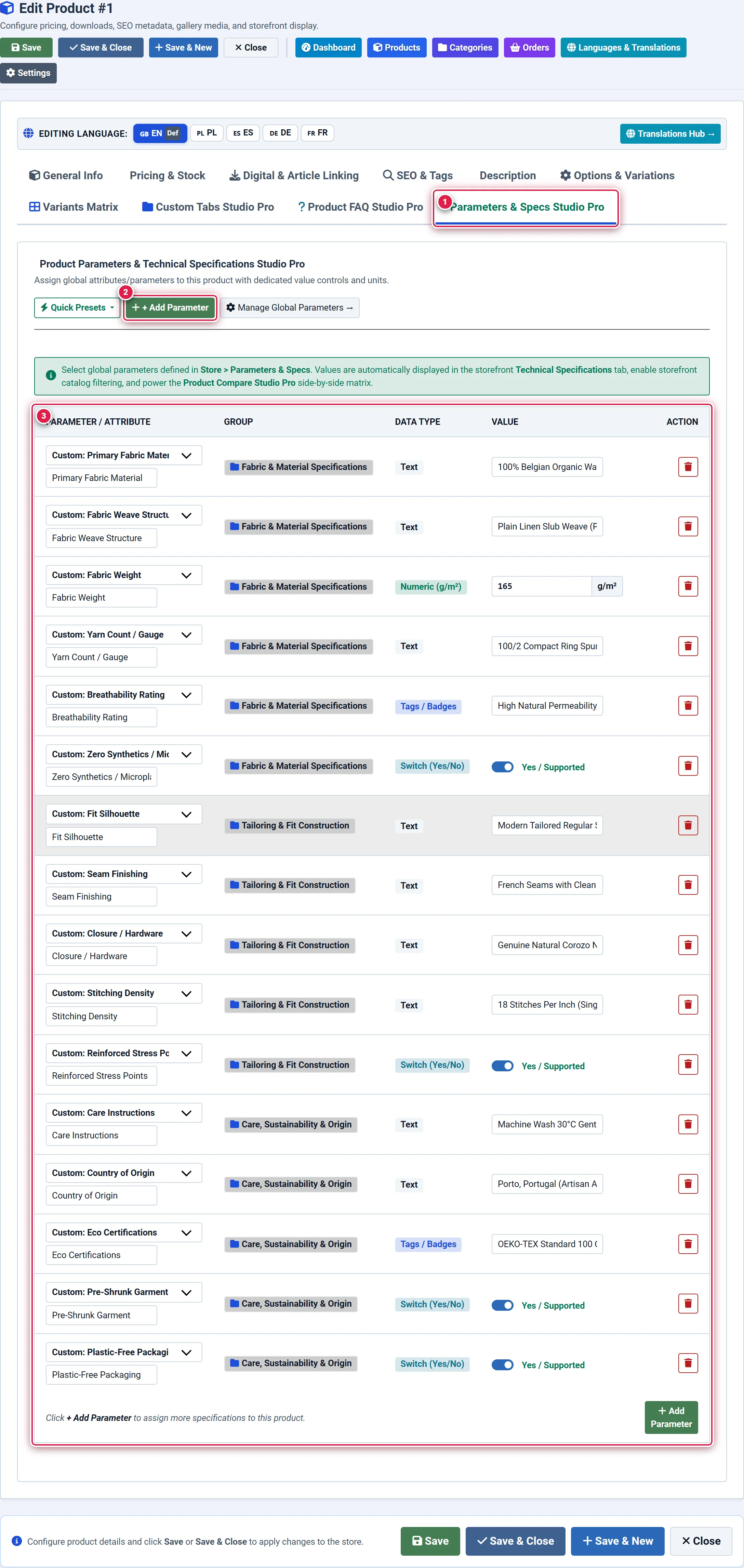
- Badge 1 — Parameters & Specs Studio Pro Tab: Activates the structured technical specifications workspace within the product editor.
- Badge 2 — + Assign Parameter Action: Adds a new parameter attribute row under the selected specification group.
- Badge 3 — Parameters Matrix & Attribute Rows: Displays assigned attributes, measurement units, values, and filterable toggles.
4. Step-by-Step Configuration
Opening the Specifications Tab (Badge 1)
Click the Parameters & Specs Studio Pro tab (#parameters-tab) in the product editor navigation bar.
You should see: The parameter matrix table displays all currently assigned attributes grouped by category.
Assigning Parameters from Global Library (Badge 2)
Click the + Assign Parameter button (button[onclick*='flxAddProductParameterRow']). Select a parameter group (e.g., Hardware) and choose the parameter attribute (e.g., RAM Memory).
You should see: A new row is added to that group container in the matrix table.
Entering Values and Measurement Units (Badge 3)
Enter the value for this specific product (e.g., 16) directly in the parameter row. If the parameter definition specifies a unit (e.g., GB), it displays automatically.
You should see: The value formats according to the parameter type (Text, Number, Dropdown, or Range).
Verifying Filterable Status and Saving
Verify that the Filterable badge is active, then click Save in the top action bar. You should see: The attribute is now live in the product's Technical Specifications tab and indexed for faceted catalog search.
5. Field Reference
| Field | Description | Default | Notes & Limits | Edition |
|---|---|---|---|---|
| Parameter Group | Logical grouping container | Required | e.g. "Hardware", "Display" | Basic |
| Parameter Name | Standardized attribute title | Required | e.g. "Screen Resolution", "RAM" | Basic |
| Data Type | Input format (text, number, select) | text | Governs filter widget rendering | Basic |
| Measurement Unit | Unit symbol appended to value | Empty | e.g. "GB", "cm", "kg", "Hz" | Basic |
| Assigned Value | Value specific to this product | Required | Indexed for faceted catalog search | Basic |
| Parameters Limit | Max parameters per product | 5 in Basic | Unlimited in Pro and Ultimate | Basic: 5 / Pro: ∞ |
6. Storefront Result & Faceted Filtering
On the storefront:
- Technical Specifications Tab: Renders a modern two-column specification table grouped by category with alternating zebra styling and dark-mode contrast compliance.
- Interactive Faceted Filter Panel: The assigned values automatically populate the storefront faceted filter sidebar widget (
#flxFacetFilterWidget). Shoppers can check attributes (e.g.RAM: 16 GB) to filter products instantly via Ajax without full page refreshes.
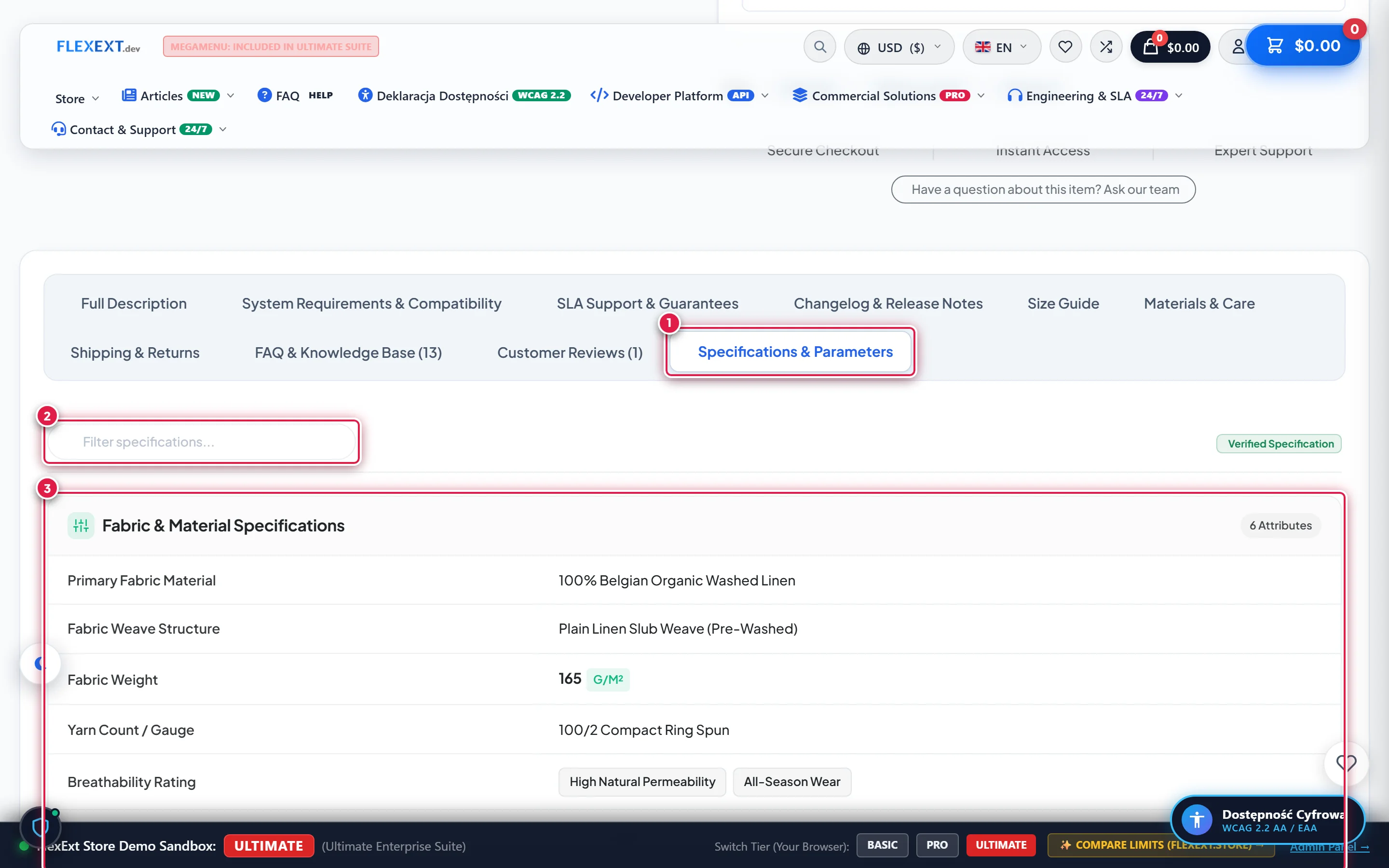
- Badge 1 — Specifications Tab: Activates the customer-facing technical specifications sheet on the product page.
- Badge 2 — Specifications Search Filter: Instant live search filter allowing shoppers to look up attributes and parameters in real time.
- Badge 3 — Verified Parameter Specifications Group: Structured card displaying verified technical attributes, values, and measurement units.
7. Tips & Best Practices
Because the storefront filter groups identical attribute values into single clickable chips with product counts, consistency is critical. Always select from pre-defined parameter dropdown values or adhere to a strict capitalization standard (e.g. always Bluetooth 5.3).
The Basic Starter tier permits up to 5 parameters per product. If your products require in-depth technical datasheets with 10–30 attributes, upgrade to Pro Commercial or Ultimate Enterprise.
8. Troubleshooting
| Symptom | Probable Cause | Recommended Resolution |
|---|---|---|
| Cannot add more than 5 parameters | Active store license is Basic Starter | Upgrade to Pro Commercial or Ultimate Enterprise for unlimited parameters per product. |
| Parameter does not appear in storefront filter widget | Parameter is marked as non-filterable or global filter plugin is unpublished | In Components → FlexExt Store → Parameters, verify that the parameter has Filterable in Catalog enabled, and ensure plg_flexext_store_filter is published. |
| Parameter value shows duplicate chips in filter (e.g. "8GB" and "8 GB") | Inconsistent spacing entered in product editor | Edit products to use the standardized spacing format. |
9. Related Documentation
- Global Parameters & Specifications Studio: Manage global attribute definitions, groups, and presets.
- Faceted Filter Plugin: Configure widget layout, count badges, and animations.
- Product Comparison Plugin: Enable side-by-side technical specification comparison.