Tab 7: Variants Matrix Studio
The Variants Matrix Studio tab (#variants) provides enterprise multi-attribute combination management. It transforms standalone product options into an inventory matrix where every permutation (e.g. Red / XL / Cotton) possesses its own SKU, physical warehouse stock count, and price override.
1. Overview
From the Variants Matrix Studio, store administrators configure:
- Matrix Generation: One-click permutation engine generating all cross-combinations from configured options.
- Unique Variant SKUs: Assign specific bar-code or warehouse SKUs to each individual combination.
- Per-Variant Stock Levels: Manage exact stock numbers per combination (e.g., 12 in Red/M, 0 in Red/L).
- Price Overrides: Set custom gross prices for specific combinations overriding base price calculation.
- Combination Activation: Toggle individual combinations on or off without deleting the underlying options.
2. Before You Start
- Prerequisites: Configure at least two option groups (e.g. Color and Size) in Tab 6: Options & Variations.
- License Requirement: This tab is exclusively available in FlexExt Store Ultimate Enterprise . On Basic Starter, Standard Commercial, or Pro Commercial tiers, the tab displays an informational upgrade lock badge.
3. Where to Find It
- Open the Product Editor (
index.php?option=com_flexext_store&view=product&layout=edit&id=1). - Click the seventh tab in the navigation bar: Variants Matrix (
#variants-tab).
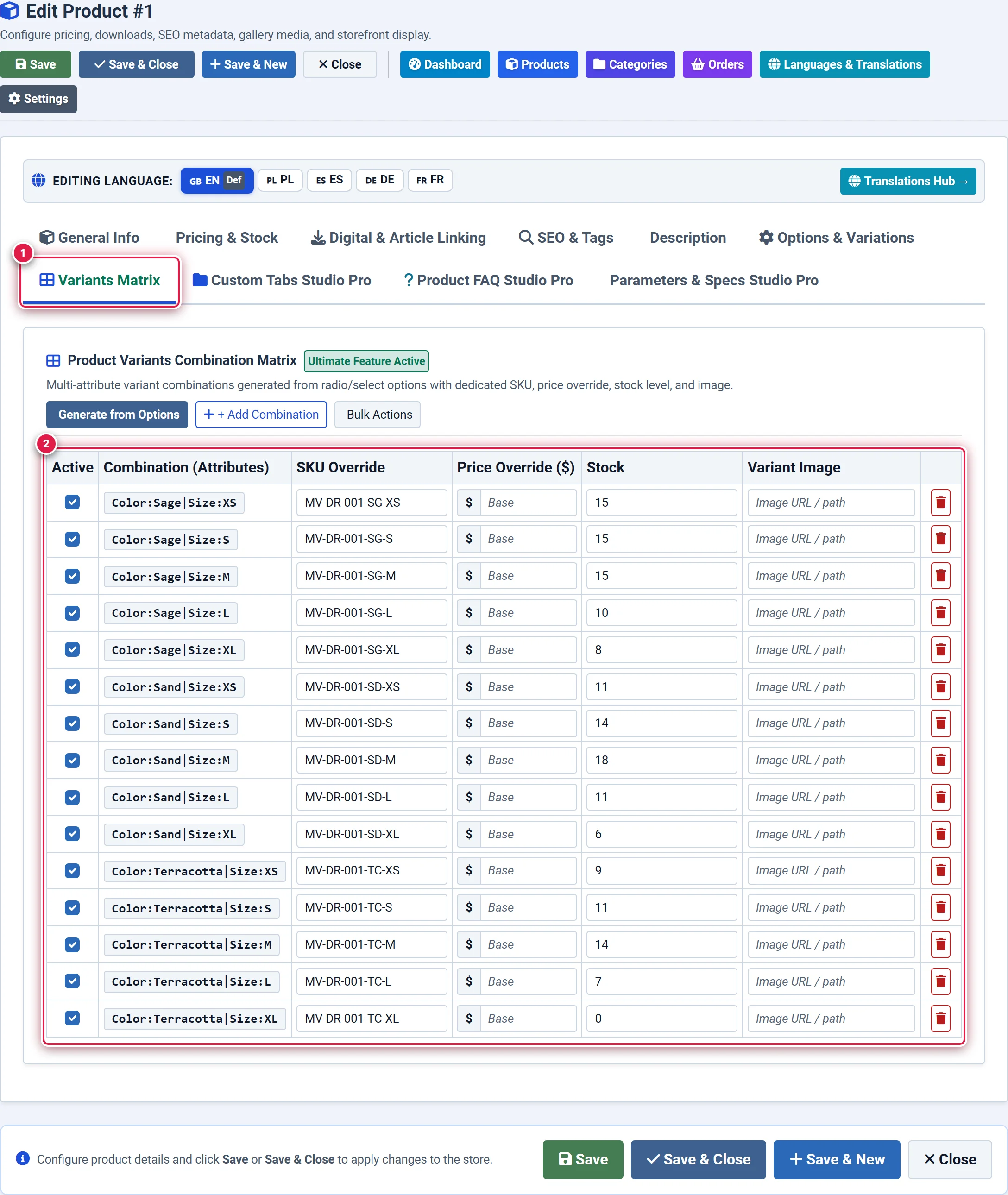
- Badge 1 — Variants Matrix Tab: Activates the enterprise multi-attribute combination workspace.
- Badge 2 — Generate Matrix Combinations Action: Cross-multiplies all active option values to populate all possible permutation rows.
- Badge 3 — Permutation Matrix Table: Configures distinct SKUs, barcodes, physical stock quantities, and price overrides per variant row.
4. Step-by-Step Configuration
Generating Combinations
Click the blue Generate Matrix Combinations button. You should see: The engine cross-multiplies all options from Tab 6 and populates the table with every permutation (e.g., Black/S, Black/M, White/S, White/M).
Assigning Variant SKUs
For each combination row, enter its dedicated warehouse identifier in the Variant SKU column (e.g., SHIRT-BLK-S).
You should see: These SKUs are used on order confirmations, picking slips, and PDF invoices.
Setting Exact Inventory Counts
In the Stock column, enter the exact quantity available for each combination. You should see: Real-time stock is tracked independently. Depleting Black/S does not impact White/S.
Applying Custom Price Overrides (Optional)
If a specific premium combination costs more (e.g. XL costs $59 instead of the base $49), enter the full price in Price Override. Leave blank to inherit base price + option modifier. You should see: Selecting that combination on the storefront will instantly load the override price.
Saving the Matrix
Click Save in the top action bar.
You should see: The matrix is compiled and stored in #__flexext_store_variants.
5. Field Reference
| Field | Description | Default | Notes & Limits | Edition |
|---|---|---|---|---|
| Combination | Visual attribute pair (e.g. Red / XL) | Auto-generated | Generated from Tab 6 options | Ultimate |
| Variant SKU | Combination-specific inventory code | Base SKU + Suffix | Indexed for barcodes and search | Ultimate |
| Stock Count | Independent physical inventory count | 0 | Triggers out-of-stock per variant | Ultimate |
| Price Override | Explicit replacement selling price | Inherited | Overrides base + option math | Ultimate |
| Weight Override | Specific shipping weight for parcel | Inherited | Accurate carrier shipping quotes | Ultimate |
| Active Status | Enabled / Disabled switch per combo | Active (1) | Disables rare or discontinued combos | Ultimate |
6. Storefront Result
On the storefront product page:
- As shoppers pick option pills (e.g., selecting Color: Blue, then Size: L), the system checks the matrix in real-time.
- The displayed SKU changes to
SHIRT-BLU-L. - The live stock status indicator updates (e.g., "Only 3 left in Blue / Large").
- If the customer selects a combination that is disabled or has
0stock, the Add to Cart button disables with an appropriate prompt.
7. Tips & Best Practices
Only create options in Tab 6 that actually influence inventory or pricing. Secondary text fields (like custom gift notes) should remain standalone options rather than being compiled into the variant matrix.
Clicking Generate Matrix Combinations when you have existing combinations will preserve matched existing rows and append new permutations. To completely rebuild from scratch, clear the matrix table before regenerating.
8. Troubleshooting
| Symptom | Probable Cause | Recommended Resolution |
|---|---|---|
| Variants Matrix tab shows "Ultimate Enterprise Locked" | Active store license is Basic Starter or Pro Commercial | Upgrade to Ultimate Enterprise to unlock multi-attribute combination matrices. |
| Matrix table is empty after clicking Generate | No options have been created in Tab 6 | Open Tab 6: Options & Variations, add at least one group with values, and save. |
| Customer can order an out-of-stock combination | Variant stock is 0 but global backorders are enabled | Toggle Allow Backorders to No in global inventory settings if strict stock enforcement is required. |
9. Related Documentation
- Tab 6: Options & Variations Studio: Configure option groups before generating the matrix.
- Tab 2: Pricing & Stock: Understand general inventory rules and volume tiered pricing.