Store Settings & Configuration Hub All Editions
The Store Settings & Configuration Hub serves as the central control panel for all operational, financial, and customer-facing workflows in FlexExt Store. Spanning 16 specialized configuration tabs, it unifies everything from basic currency formatting and automated European Central Bank (ECB) exchange rates to geographic delivery zones, multi-language phrase overrides, customer return merchandise authorization (RMA), affiliate commission programs, and enterprise multi-vendor marketplace governance.
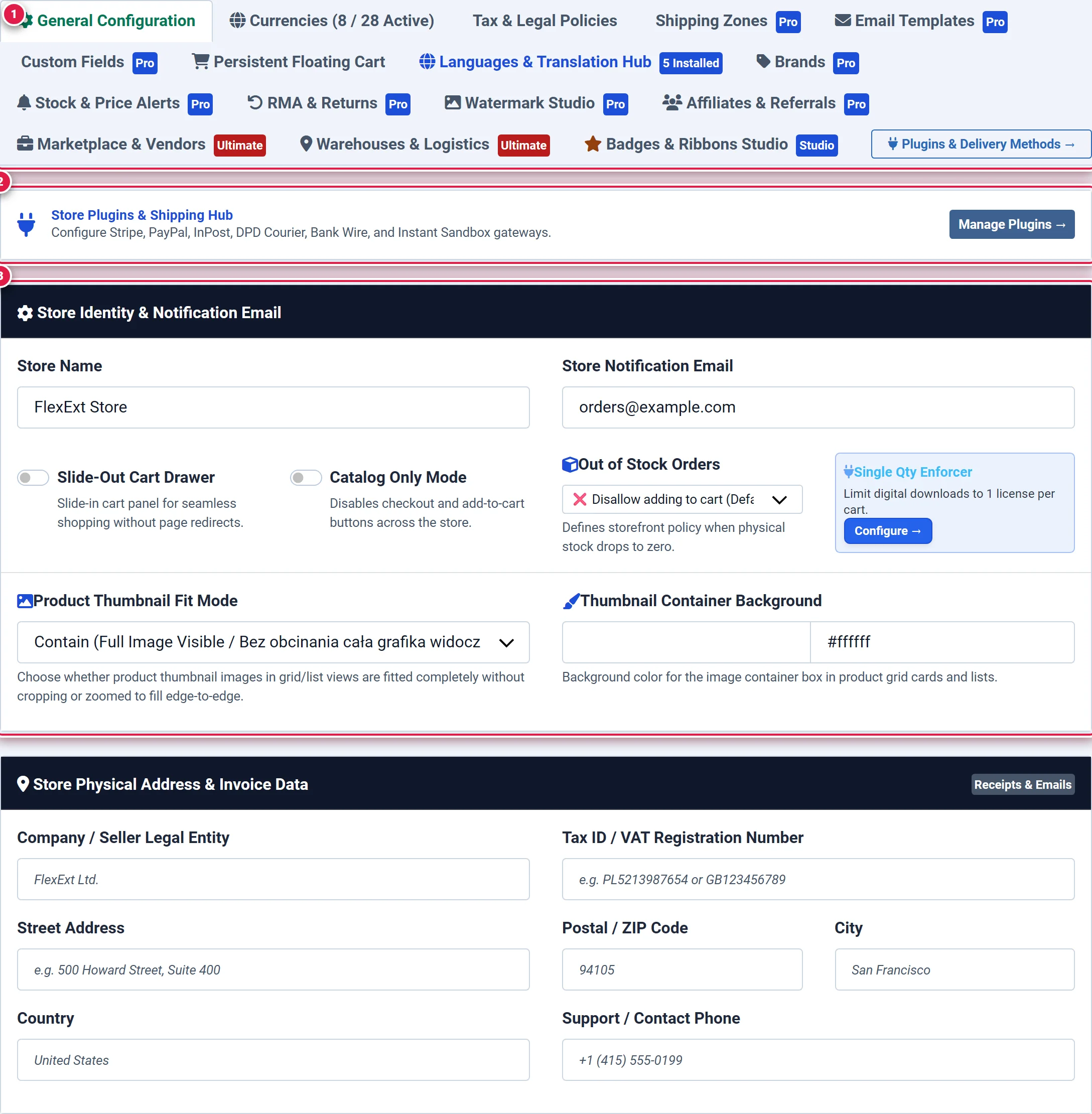
- Badge 1 — 16-Module Configuration Hub Navigation Bar: Horizontal tabbed navigation granting immediate access to all 16 subsystem panels.
- Badge 2 — Plugins & Delivery Ecosystem Quick Link: Direct shortcut to the Payment & Shipping Plugins Hub for configuring Stripe, PayPal, and courier integrations.
- Badge 3 — Store Identity, Currency & Catalog Display Standards: Master fields configuring business identity, default store currency, price precision, and default catalog pagination.
4 Commercial Editions Settings Matrix
FlexExt Store delivers a cohesive settings architecture where advanced modules activate smoothly based on your licensed commercial tier:
| Configuration Module | Basic Starter ($0) | Standard Growth ($39) | Pro Commercial ($79) | Ultimate Enterprise ($199) |
|---|---|---|---|---|
| 1. General Store Identity & Invoicing | Included | Included | Included | Included |
| 2. Multi-Currency Engine | Up to 2 Currencies | Up to 3 Currencies | Up to 28 Currencies (ECB Sync) | Up to 28 Currencies (ECB Sync) |
| 3. Tax Rules & EU VAT OSS | Included | Included | Included | Included |
| 4. Shipping Zones & Geotargeting | Flat Rate | Standard Zones | Advanced Geotargeted Matrix | Advanced Geotargeted Matrix |
| 5. Email Templates & Automation | Standard Text | Standard HTML | Custom Visual HTML + Dynamic Tags | Custom Visual HTML + Dynamic Tags |
| 6. Checkout Custom Fields | Standard | Standard | Visual Form Designer | Visual Form Designer |
| 7. Persistent Floating Cart | Basic Floating Button | Standard Drawer | Full Drawer + Animation Styles | Full Drawer + Animation Styles |
| 8. Languages & Translation Hub | English & Polish | English & Polish | All Installed Languages | All Installed Languages |
| 9. Brands & Manufacturers | — | Standard Directory | Dedicated Brand Landing Pages | Dedicated Brand Landing Pages |
| 10. Stock & Price Drop Alerts | — | — | Automated Customer Triggers | Automated Customer Triggers |
| 11. RMA & Returns Management | — | — | Full RMA Lifecycle Engine | Full RMA Lifecycle Engine |
| 12. Watermark Studio | — | — | Auto-Overlay Engine | Auto-Overlay Engine |
| 13. Affiliates & Referrals | — | — | Partner Tracking & Payouts | Partner Tracking & Payouts |
| 14. Marketplace & Multi-Vendor | — | — | — | Multi-Vendor Governance Hub |
| 15. Warehouses & Logistics | Single Inventory | Single Inventory | Multi-Stock View | Multi-Location Inventory & Routing |
| 16. Badges & Ribbons Studio | Static Badges | Static Badges | Dynamic Gradient Builder | Dynamic Gradient Builder |
Where to Find It
Access Store Settings from the Joomla Administrator navigation:
Components → FlexExt Store → Store Settings
Direct URL: administrator/index.php?option=com_flexext_store&view=settings
Detailed Guide to All 16 Configuration Modules
1. General Configuration (tab=general)
The foundational store identity and catalog display configuration:
- Business Identity: Store Legal Name, Support Email, Physical Address, Phone, and Corporate VAT / Tax Identification Number.
- Base Currency & Numeric Formats: Base reference currency (
currency_default), symbol position (Before/After), number of decimals, decimal separator (.,,), and thousands grouping separator. - Invoice Prefix & Accounting: Automated fiscal invoice numbering format (e.g.
INV-{YYYY}-orFXS-), starting counter sequence, and automatic PDF receipt generation. - Catalog Layout Defaults: Preferred default display mode (Grid vs. List) and default products per catalog page (12, 24, 48).
- Sandbox Mode: Test checkout switcher enabling simulation orders without triggering real card authorizations.
2. Currencies & ECB Exchange Rate Engine (tab=currencies) All Editions
FlexExt Store includes an automated multi-currency pricing engine supporting real-time exchange rates synchronized daily with the European Central Bank (ECB):
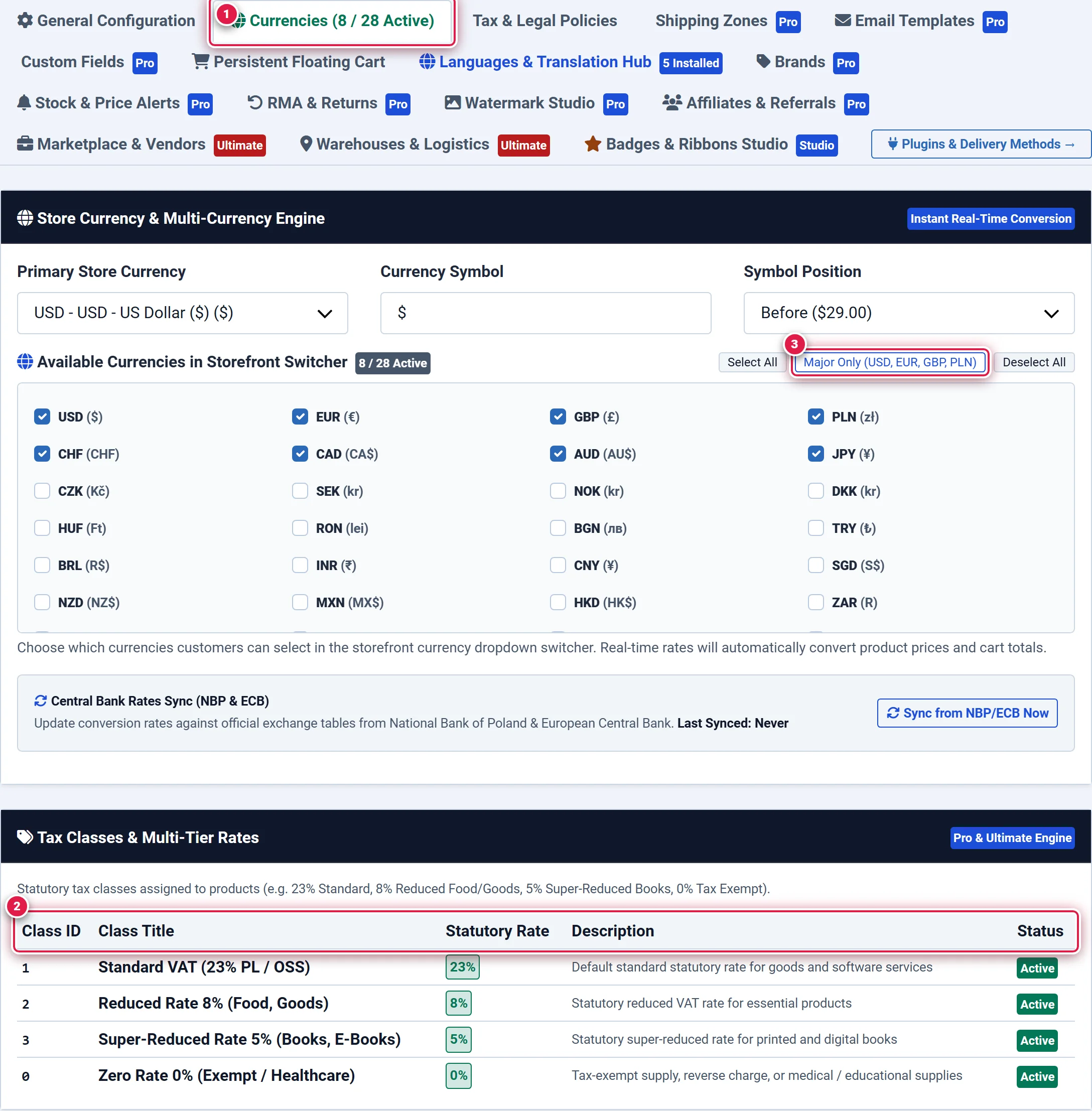
- Badge 1 — Currencies Navigation Tab with Active Edition Limits: Indicates current active currencies count against your commercial edition limit (Basic: 2 max, Standard: 3 max, Pro/Ultimate: up to 28 active currencies).
- Badge 2 — Multi-Currency Exchange Rates & Formatting Table: Editable ledger showing ISO currency codes (EUR, USD, GBP, PLN, CHF, JPY, etc.), exchange rates against the base store currency, symbol glyphs, and active storefront availability.
- Badge 3 — Automated Real-Time ECB Exchange Rates Sync: One-click action button that connects to the official ECB daily API feed to refresh all currency exchange rates instantly.
3. Tax & Legal Policies (tab=taxes)
Configure fiscal compliance, value-added taxes, and consumer protection policies:
- Tax Mode: Globally enable or disable sales tax calculations.
- Gross vs. Net Price Display: Configure whether prices throughout the catalog and product cards are displayed Tax-Inclusive (Gross) or Tax-Exclusive (Net).
- Default Tax Rate: Standard tax rate percentage (e.g.
23.00%,20.00%,0.00%). - EU VAT OSS / Reverse Charge: In Pro and Ultimate, cross-border B2B orders automatically validate customer VAT identification numbers against the European Commission VIES API to zero-rate intra-community supplies.
- Legal Checkbox Obligations: Require mandatory customer acceptance of Terms & Conditions and Privacy Policy prior to placing an order.
4. Shipping Zones & Geotargeting (tab=shipping-zones) All Editions
Define geographic delivery zones with custom shipping calculation rules:
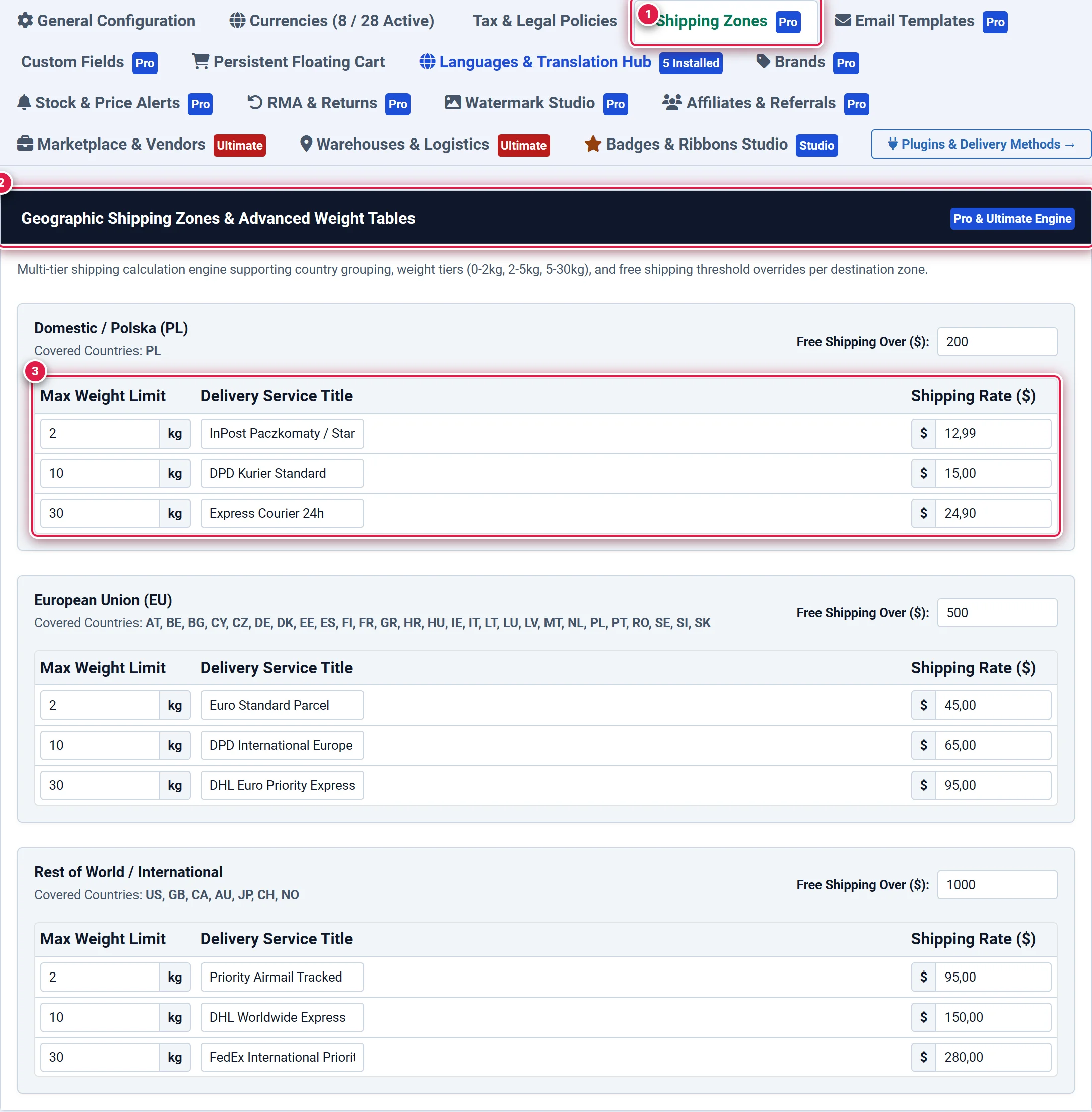
- Badge 1 — Shipping Zones Configuration Tab: Direct tab selector for geographic logistics management.
- Badge 2 — Geographic Delivery Zones Manager: Card container defining delivery territories (e.g. Domestic, European Union Zone 1, North America, Rest of World).
- Badge 3 — Zone Rate Matrix: Multi-tier threshold table configuring base shipping fees, weight brackets, order value brackets, and free shipping triggers (
free_shipping_min).
5. Email Templates & Automated Dispatch (tab=emails) All Editions
Customize customer transactional emails and admin alerts:
- Available Notification Types: Order Confirmation, Payment Received, Order Shipped with Tracking Number, Order Cancelled/Refunded, Digital License & Download Delivery, and Low Stock Admin Alerts.
- Visual HTML Editor: Design branded email layouts with logo headers, primary accent colors, and footer legal disclaimers.
- Dynamic Merge Tags: Insert variables such as
{order_number},{customer_name},{order_items},{order_total},{download_links}, and{shipping_carrier}.
6. Checkout Custom Fields (tab=custom-fields) All Editions
Capture tailored customer data during checkout:
- Supported Field Types: Text input, multiline text, select dropdown, checkbox, and date picker.
- Typical Use Cases: Corporate Tax ID (NIP/VAT number), Courier delivery access instructions, Order gift notes, or Preferred delivery time window.
- Placement Options: Assign fields to Customer Account Creation, Billing Address step, or Shipping Details step.
7. Persistent Floating Cart (tab=floating-cart)
The persistent floating cart keeps the shopping cart accessible from every page without obstructing product browsing:
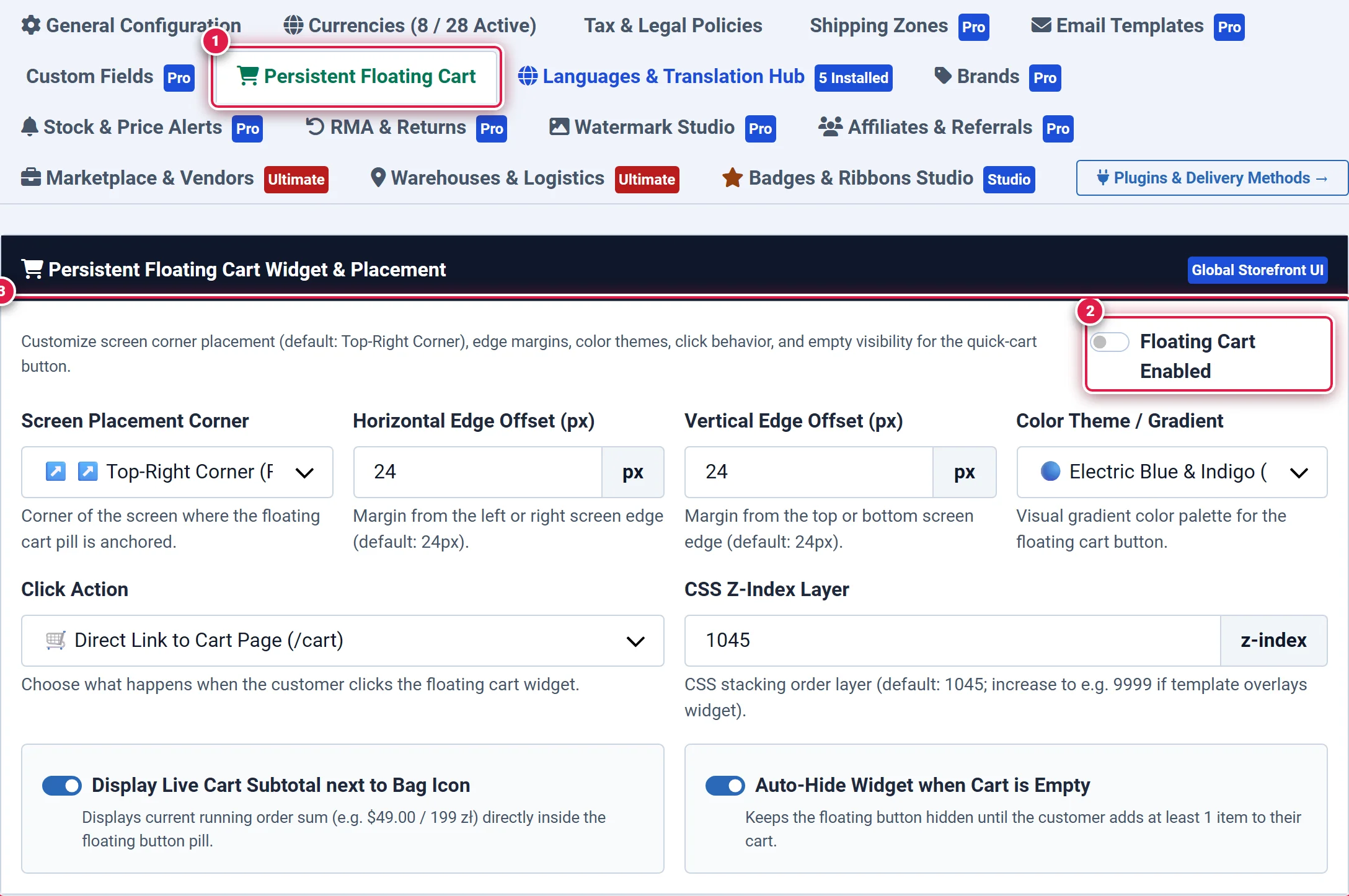
- Badge 1 — Persistent Floating Cart Configuration Tab: Navigates to the slide-in drawer and interactive mini-cart controls.
- Badge 2 — Floating Cart Master Enable Switch: Global toggle activating the persistent storefront cart bubble and slide-in drawer.
- Badge 3 — Drawer Animation, Position, and Mini-Cart Layout Controls: Dropdowns configuring on-screen corner anchor (Top-Right, Bottom-Right, Top-Left, Bottom-Left), visual color gradient palettes, and click behavior (Slide-Out Ajax Drawer vs Direct Checkout).
8. Languages & Translation Hub (tab=translations)
Manage multi-language translation overrides directly within the database:
- Zero File Editing: Modify any storefront or administrator string without editing
.inilanguage files on the server. - Instant Search & Filter: Search phrases by original English key or localized translation string.
- Multi-Locale Synchronization: Displays side-by-side translation inputs for all installed Joomla content languages.
9. Brands & Manufacturers (tab=brands) All Editions
Organize your catalog by manufacturer brand:
- Brand Profiles: Brand Name, SEO Alias, Vector/PNG Logo, Official Website URL, and Markdown/HTML Brand Overview.
- Catalog Navigation: Generates dedicated brand landing pages (e.g.
/brand/intel) showcasing all products from that manufacturer.
10. Stock & Price Drop Alerts (tab=stock-alerts) All Editions
Automate customer re-engagement:
- Back-in-Stock Alerts: When a product inventory drops to zero, an interactive "Notify Me When Available" button appears on the product page. When stock is replenished, subscribed customers automatically receive an email alert.
- Price Drop Notifications: Allows shoppers to register for automated notifications if an item's price is discounted.
11. RMA & Customer Returns (tab=rma) All Editions
Empower customer service with a formalized return workflow:
- Return Time Window: Configure maximum eligible days after delivery (e.g. 14, 30, or 60 days).
- Reason Presets: Define standard return reasons (Defective/Damaged, Wrong Size, Not as Described, Changed Mind).
- Resolution Types: Store Credit, Item Replacement, or Full Monetary Refund.
12. Watermark Studio (tab=watermark) All Editions
Protect intellectual property on digital and physical product photography:
- Source Type: PNG transparent image logo or formatted typography text.
- Anchor Placement: Center, Bottom-Right, Bottom-Left, or Repeated Diagonal Grid.
- Opacity & Scaling: Fine-tune transparency percentages to maintain image clarity while preventing unauthorized asset scraping.
13. Affiliates & Referrals (tab=affiliates) All Editions
Run an internal affiliate marketing program without third-party SaaS fees:
- Referral Tracking: Query parameter tracking (e.g.
?ref=PARTNER_ID) stored in customer cookies (configurable lifetime: 30, 60, or 90 days). - Commission Models: Fixed fee per completed order or percentage of gross basket value.
- Partner Portal: Dedicated front-end partner dashboard where affiliates inspect clicks, conversion rates, and earned commissions.
14. Marketplace & Multi-Vendor Governance (tab=marketplace) All Editions
Transform your Joomla installation into a multi-seller marketplace:
- Vendor Commission Rates: Set global marketplace commission cut (e.g. 15% platform fee) or override on individual vendor accounts.
- Vendor Approval Workflow: Require administrator verification before vendor products go live.
- Vendor Dashboard Isolation: Restricts vendor access to their own inventory, order fulfillments, and earnings history.
15. Warehouses & Multi-Location Logistics (tab=warehouses) All Editions
Manage complex physical distribution networks:
- Multiple Warehouse Locations: Register regional fulfillment centers, brick-and-mortar retail outlets, and partner dropshippers.
- Stock Allocation: Assign inventory quantities per warehouse on each product variant.
- Automated Routing: Routes order fulfillment to the nearest warehouse based on customer delivery address.
16. Badges & Ribbons Studio (tab=badges-ribbons)
Visually highlight featured products in catalog grids:
- Ribbon Types: Corner Ribbons, Floating Badges, and Pill Overlays.
- Custom Visual Styles: Gradient backgrounds, badge borders, and custom icon glyphs.
- Automated Rules: Automatically attach "New Arrival" ribbons to products created within the last 14 days, or "-X% OFF" ribbons when promotional pricing is active.
Related Documentation
- Parameters & Specifications Studio — Global technical specification libraries and storefront facet filters.
- Orders Management & Fiscal Invoicing — Order fulfillment workflows and VAT invoice generation.
- Payment & Delivery Plugins — Configuring Stripe, PayPal, and courier shipping extensions.
- 4-Tier Commercial Edition Comparison Matrix — Detailed breakdown of features across Basic, Standard, Pro, and Ultimate.