Admin Dashboard & Performance Hub All Editions
The FlexExt Store Dashboard serves as the mission control center for your Joomla ecommerce store. It delivers real-time visibility into store revenue, incoming customer orders, catalog stock health, and core system services without requiring external analytics plugins.
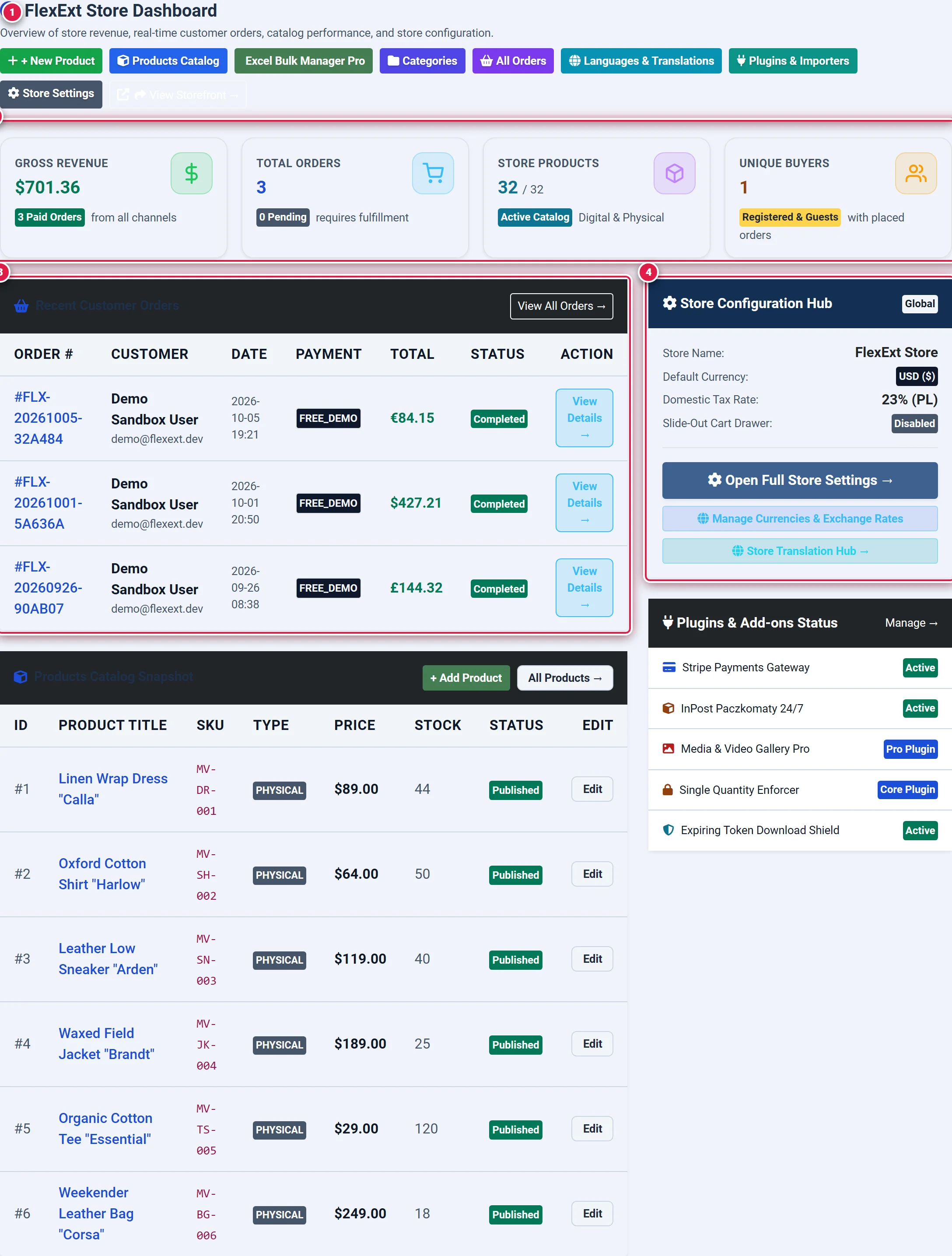
- Badge 1 — Top Quick Action Toolbar: One-click shortcuts to add products, browse the catalog, access Excel Bulk Manager Pro, open settings, and preview the live storefront.
- Badge 2 — Real-Time KPI Metric Cards: Live tracking cards showing gross store revenue, total orders count, published catalog items, and unique customer profiles.
- Badge 3 — Recent Customer Orders Table: Live workbench table displaying latest customer orders, payment channels, transaction amounts, and status badges.
- Badge 4 — Store Configuration Hub: Right-hand summary panel showing active currency, domestic tax rates, cart mode, and installed extension plugins.
Before you start
- Permissions: Requires Joomla Administrator access or a User Group with
core.manageandcore.adminpermissions oncom_flexext_store. - Edition Availability: The core dashboard is included in all editions (Basic, Pro, and Ultimate). Advanced metric drill-downs (e.g. B2B customer segments, multi-currency reporting) adapt dynamically to your active license tier.
- Data Currency: Metrics are computed live from the Joomla database upon each page load.
Where to find it
Navigate to the dashboard from the Joomla Administrator top or sidebar menu:
Components → FlexExt Store → Dashboard
Direct URL: administrator/index.php?option=com_flexext_store&view=dashboard
Key Dashboard Sections
1. Top Quick Action Toolbar (Badge 1)
The top navigation bar provides one-click shortcuts to key management interfaces:
- + New Product: Opens the product creation form (
view=product&layout=edit). - Products Catalog: Jumps to the full catalog manager (
view=products). - Excel Bulk Manager Pro: Opens the interactive grid editor for batch updates (
view=bulk_manager). - Categories: Opens category hierarchy management (
view=categories). - All Orders: Direct access to sales orders and fulfillment (
view=orders). - Languages & Translations: Multilingual string translation hub (
view=settings&tab=translations). - Plugins & Importers: Gateway configuration and add-ons management (
view=plugins). - Store Settings: Global store parameters, taxes, and shipping (
view=settings). - View Storefront →: Opens your public storefront catalog in a new browser tab.
2. Real-Time KPI Metric Cards (Badge 2)
Four cards highlight the store's core metrics:
- Gross Revenue: Total completed sales formatted in your default store currency (
StoreHelper::formatPrice). Displays a sub-badge with the total count of paid orders across all payment channels. - Total Orders: Cumulative count of orders recorded in the system. Displays a status badge highlighting pending orders that require fulfillment or payment verification.
- Store Products: Active published products compared against the total database product count (
active / total). Tracks both digital software downloads and physical inventory. - Unique Buyers: Total number of distinct customer profiles (both registered Joomla users and guest checkout buyers) who have placed at least one order.
3. Recent Customer Orders (Badge 3)
The primary workbench displays the latest customer orders with real-time status tracking:
- Order #: Clickable order reference number (e.g.
#FLX-10042). - Customer: Name and verified billing email address.
- Date: Timestamp of initial checkout submission.
- Payment: Selected gateway badge (e.g. Stripe, Przelewy24, Bank Transfer).
- Total: Final charged order total in the transacted currency.
- Status: Color-coded lifecycle indicator:
Paid/Completed→ Green badgePending/Awaiting Payment→ Yellow badgeShipped→ Blue badgeCancelled/Refunded→ Red badge
- Action: Direct
View Details →button linking to order item details, tax breakdowns, and PDF invoice generation.
4. Products Catalog Snapshot
A quick view of high-priority catalog items with stock warning indicators:
- Items with 5 or fewer physical units in inventory are flagged with a red
Low: Xbadge. - Quick
Editbuttons allow instant price adjustments or stock replenishment.
5. Store Configuration Hub & Services (Badge 4)
The right column summarizes active store parameters:
- Default Currency: Active base ISO currency and symbol.
- Domestic Tax Rate: Domestic VAT/sales tax rate and ISO country code.
- Cart Drawer: Operating mode indicator (Slide-out AJAX drawer vs standard cart page).
- Plugins & Add-ons Status: Real-time status indicators for installed payment gateways (Stripe, InPost, Media Gallery Pro, and Secure Download Shields).
Daily Store Management Workflow
Check Pending Orders
Upon accessing the dashboard, inspect the Total Orders card. If the yellow Pending badge shows orders awaiting processing, click All Orders or select the order in the Recent Customer Orders table.
Verify Payment & Stock
Review the payment gateway and status column. For digital downloads, verify that download tokens are generated. For physical items, verify stock levels in the Products Catalog Snapshot.
Access Storefront Preview
Click View Storefront → in the top navigation bar to test live storefront pricing, promotions, and cart drawer responsiveness from a customer perspective.
Dashboard Metric Reference
| Metric Card / Widget | Type | Data Source | Edition Availability |
|---|---|---|---|
| Gross Revenue | Numeric / Currency | #__flexext_store_orders (status IN ('paid','completed')) | Basic / Pro / Ultimate |
| Paid Orders Count | Integer | #__flexext_store_orders | Basic / Pro / Ultimate |
| Total Orders | Integer | Cumulative order count | Basic / Pro / Ultimate |
| Pending Fulfillment | Integer | Orders with pending or awaiting_payment | Basic / Pro / Ultimate |
| Active Catalog | Ratio (X / Y) | #__flexext_store_products (state = 1) | Basic / Pro / Ultimate |
| Unique Buyers | Integer | Distinct customer emails in orders table | Basic / Pro / Ultimate |
| Low Stock Warning | Threshold Alert | Triggered when physical stock ≤ 5 units | Basic / Pro / Ultimate |
| B2B Group Analytics | Segment View | Customer group volume pricing breakdown | Pro / Ultimate |
Tips & Best Practices
You can open the new product editor directly from the dashboard top bar using + New Product without navigating through the catalog list.
The dashboard automatically syncs with Joomla 5 and 6 dark mode administrator themes. High-contrast borders and custom color tokens ensure all KPI badges and action buttons meet WCAG AA contrast standards.
Troubleshooting
Dashboard Shows 0 Revenue After Test Checkout
If an order was placed on the storefront but does not reflect in Gross Revenue, ensure the order status was updated to paid or completed. Orders in pending status are tallied under Total Orders but excluded from Gross Revenue until payment confirmation is received.
Volatile Demo Reset Warning
On official demo instances (j6-demo.flexext.dev), the sandbox database resets automatically according to the scheduled interval. All test orders placed during your session will be restored to the clean baseline.