Tab 6: Options & Variations Studio
The Options & Variations tab (#options) allows store owners to configure customizable product attributes such as Size, Color, Material, License Duration, or Custom Engraving Text, complete with real-time price and weight adjustments.
1. Overview
From the Options & Variations tab, store administrators configure:
- Option Groups: Group containers for related attributes (e.g., Color, Size, Storage Capacity).
- Input Display Types: Select between Dropdown list (
select), Radio pills (radio), Multi-select checkboxes (checkbox), and Custom Text Input (text). - Price & Weight Modifiers: Dynamically increase or decrease product price (
+or-) and physical shipping weight. - Option Stock Tracking (Pro): Track separate inventory counts per individual option value .
- Edition Capacities:
- Basic Starter supports up to 3 option groups per product .
- Standard Commercial, Pro, and Ultimate Enterprise provide unlimited option groups.
2. Before You Start
- Pricing Strategy: Decide whether options will incur surcharges (e.g.
+10.00) or if they are standard variations included in the base price. - Variants Matrix (Ultimate): If you require unique SKUs per cross-combination (e.g. Red/XL), configure options here first, then proceed to the Variants Matrix tab.
3. Where to Find It
- Open the Product Editor (
index.php?option=com_flexext_store&view=product&layout=edit&id=1). - Click the sixth tab in the navigation bar: Options & Variations (
#options-tab).
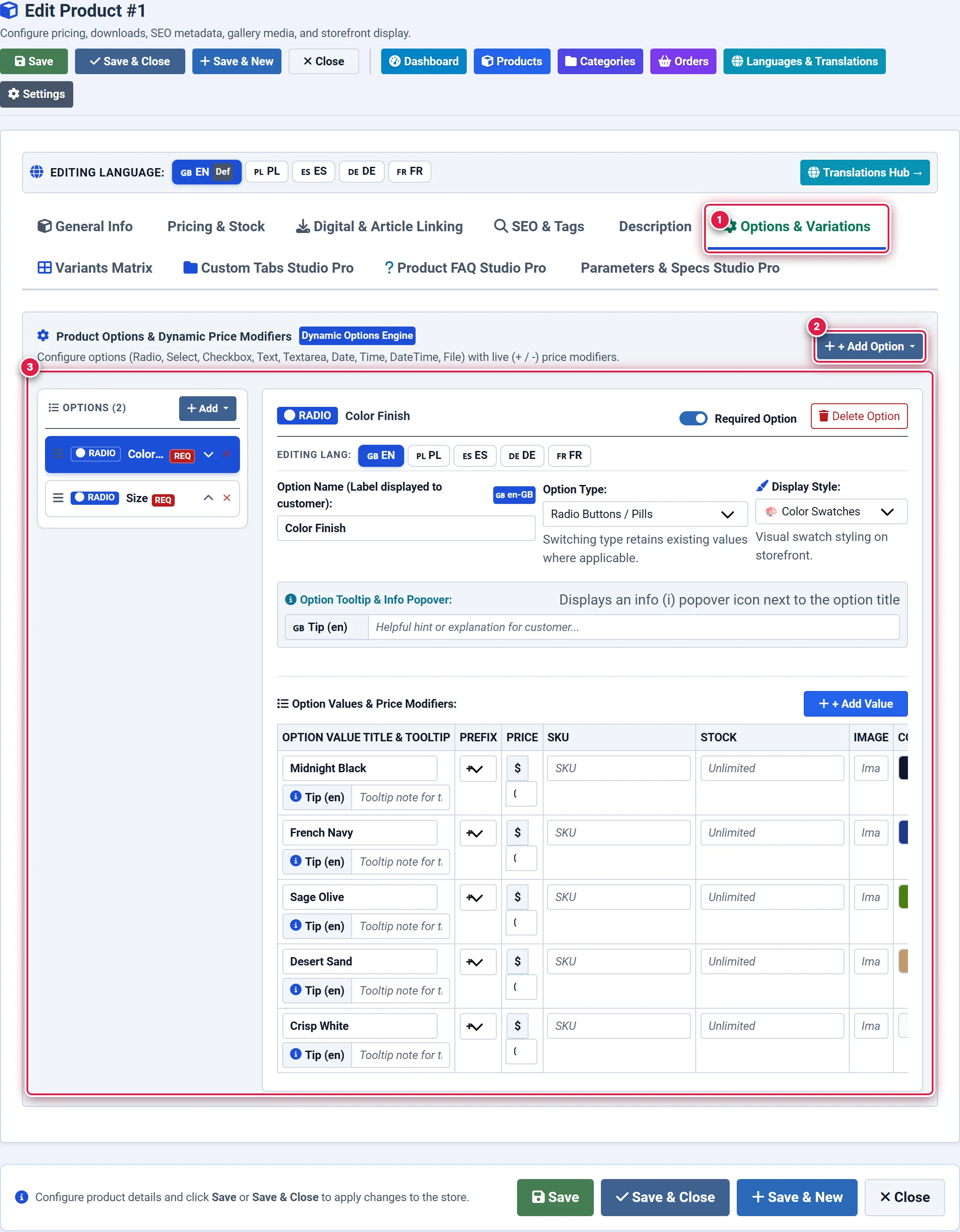
- Badge 1 — Options & Variations Tab: Activates the customizable product attributes and modifiers workspace.
- Badge 2 — + Add Option Group Action: Creates a new attribute container (Select, Radio, Checkbox, Text).
- Badge 3 — Option Values & Modifiers Card: Manages option values, surcharge/discount price modifiers (
+/-), weight adjustments, and inventory stock.
4. Step-by-Step Configuration
Adding an Option Group
Click the blue + Add Option Group button. Enter the group title (e.g., Shirt Size) and select the input control type (e.g., Radio Pills).
You should see: A new option group container appears with an empty values table.
Adding Option Values and Price Modifiers
Inside the group, click + Add Value. Enter:
- Value Name: The customer-facing label (e.g.,
XLor128 GB). - Price Prefix: Select
+(surcharge) or-(discount). - Price Modifier: Enter the amount (e.g.,
5.00). - SKU Suffix: Optional code appended to base SKU (e.g.,
-XL). You should see: The new value row is created with instant validation.
Setting Option Inventory (Pro Commercial)
If using Pro or Ultimate, enter the specific stock count for each option value in the Stock column. You should see: When an option value runs out of stock, it automatically disables or shows an "Out of Stock" badge on the storefront.
Saving the Product
Click Save in the top action bar. You should see: The product options update immediately on the storefront with interactive price calculations.
5. Field Reference
| Field | Description | Default | Notes & Limits | Edition |
|---|---|---|---|---|
| Option Group Title | Name of the attribute group | Required | e.g. "Color", "Size", "Engraving" | Basic |
| Input Type | Customer selection widget | select | Dropdown, Radio Pills, Checkbox, Text | Basic |
| Value Label | Display name of the specific option | Required | e.g. "Small", "Large", "Red" | Basic |
| Price Modifier | Price change applied upon selection | 0.00 | Supports positive (+) or negative (-) | Basic |
| Weight Modifier | Shipping weight adjustment (kg) | 0.00 | Adjusts real-time parcel carrier rates | Pro / Ultimate |
| Option Stock | Independent inventory per option | None | Prevents selecting depleted sizes/colors | Pro / Ultimate |
| Option Groups Limit | Maximum option groups per product | 3 in Basic | Unlimited in Pro and Ultimate | Basic: 3 / Pro: ∞ |
6. Storefront Result
On the storefront product page:
- Option groups render above the Add to Cart button as stylish radio pill buttons, dropdown selectors, or text inputs.
- As the customer toggles different options (e.g., selecting
128 GB (+50.00)), the main displayed product price dynamically animates and updates in real-time. - If an option carries an inventory count of
0in Pro edition, it is styled with a subtle strike-through and cannot be selected.
7. Tips & Best Practices
For options with 2 to 5 values (e.g. Sizes: S, M, L, XL), configure Input Type as Radio Pills. Customers can see and compare all choices at a glance without having to click open a dropdown menu.
The Basic Starter edition enforces a hard limit of 3 option groups per product (e.g. Size, Color, Material). If you attempt to add a 4th group on Basic, the system will prompt an upgrade to Pro Commercial.
8. Troubleshooting
| Symptom | Probable Cause | Recommended Resolution |
|---|---|---|
| Cannot add more than 3 option groups | Active license tier is Basic Starter | Upgrade to Pro Commercial or Ultimate Enterprise for unlimited option groups. |
| Price does not update when selecting an option on storefront | Theme JavaScript conflict or cached template assets | Clear Joomla and browser cache; verify that store script flx-storefront.js is loaded. |
| Customer cannot type in custom text field | Input type was set to select instead of text | Edit option group and switch Input Type to Text Input. |
9. Related Documentation
- Tab 2: Pricing & Stock: Manage base price and overall product stock.
- Tab 7: Variants Matrix: Convert options into a cross-combination inventory matrix (Ultimate).
- Option Tooltips Plugin: Add explanatory tooltips to option labels.