Tab 5: Description & Multilingual Content
The Description tab (#description) provides full WYSIWYG editing capabilities for marketing copy, product highlights, video embeds, and localized translations across all installed store languages.
1. Overview
From the Description tab, store administrators manage:
- Short Description (Teaser): Quick summary displayed in product catalog cards, category listings, and above-the-fold hero zones.
- Full Description: Comprehensive rich-text product body powered by Joomla's native TinyMCE editor, supporting tables, bullet lists, images, and embedded media.
- Multilingual Content Tabs: Dedicated language pills allowing translation into English, Polish, Spanish, German, French, and any other installed Joomla language pack.
2. Before You Start
- Languages: To manage multi-language descriptions, ensure target language packs are installed in
System ➔ Manage ➔ Languages. - Media: Upload marketing photos or diagrams to Joomla Media Manager before inserting them into the editor.
3. Where to Find It
- Open the Product Editor (
index.php?option=com_flexext_store&view=product&layout=edit&id=1). - Click the fifth tab in the navigation bar: Description (
#description-tab).
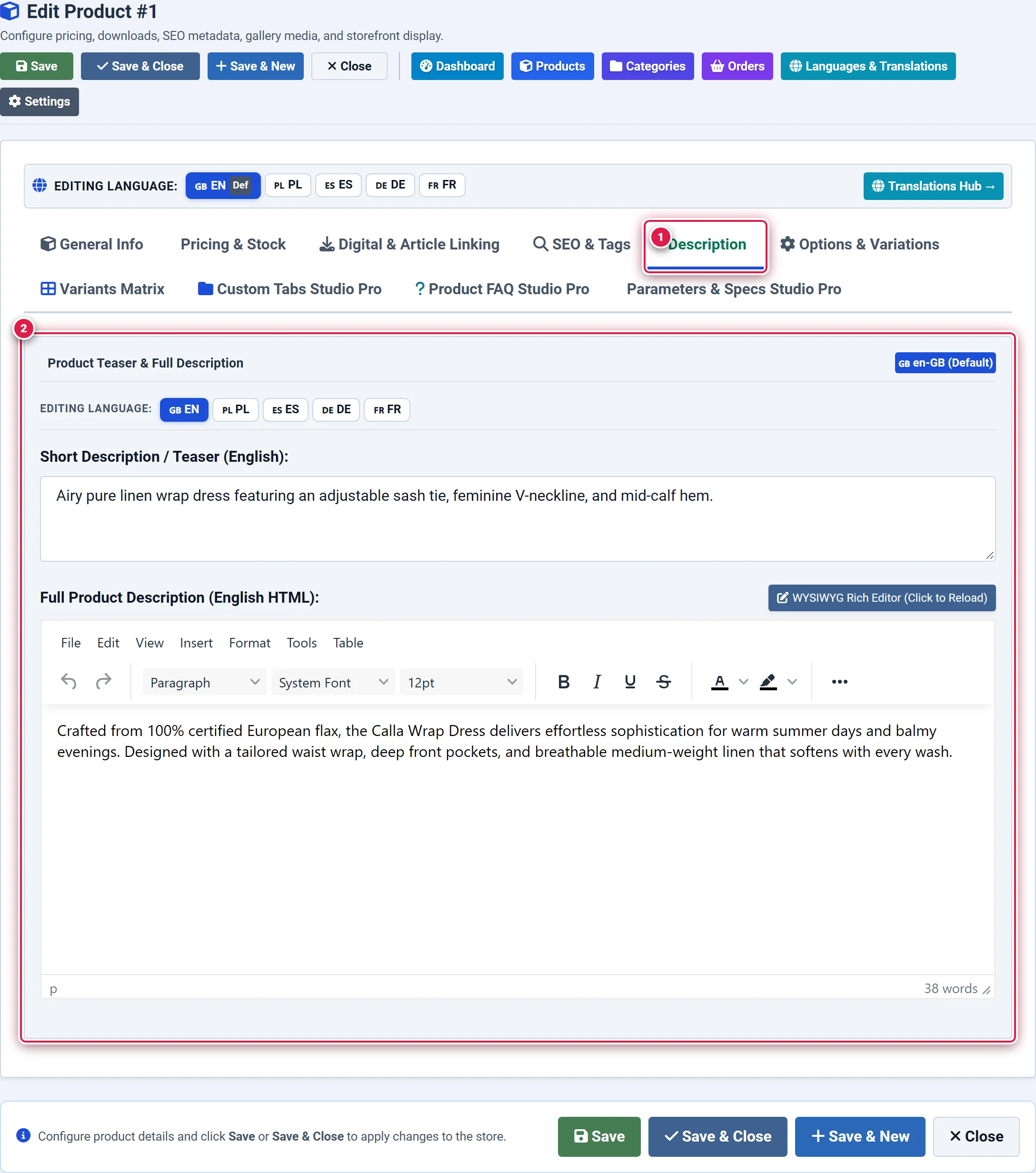
- Badge 1 — Description Tab: Activates the marketing copy and localized content workspace.
- Badge 2 — Teaser & Short Summary: Edits the above-the-fold catalog summary and product snippet.
- Badge 3 — Rich-Text TinyMCE & Language Switcher: Provides visual formatting, headings, bullet lists, media embedding, and language tab switching.
4. Step-by-Step Configuration
Writing the Short Description Teaser
Enter a 1–2 sentence highlight summary in the Short Description field. You should see: This text renders in catalog grid/list views directly beneath the title and price.
Formatting the Full Description Body
Use the TinyMCE Rich-Text Editor to format the complete product presentation. Add headings (H2, H3), structured bullet points, feature tables, and embedded YouTube/Vimeo demo videos.
You should see: Formatted content renders under the main "Description" tab on the storefront product page.
Adding Native Translations
Click on any non-default language pill (e.g. PL, DE, ES) at the top of the description area.
You should see: The editor reloads with the translated fields for that language. Enter localized short and full descriptions.
Saving Changes
Click Save in the top action bar. You should see: Changes update instantly across all active language storefronts.
5. Field Reference
| Field | Description | Default | Notes & Limits | Edition |
|---|---|---|---|---|
| Short Description | Teaser summary for catalog cards | Empty | Plain text or basic HTML | Basic |
| Full Description | Comprehensive rich-text product body | Empty | Full TinyMCE editor with media embeds | Basic |
| Language Tabs | Active Joomla language selectors | Default Locale | Supports all installed languages | Basic |
6. Storefront Result
- Category Cards: Display the short description teaser to help shoppers quickly compare items in the grid.
- Product Details Page: The full description is presented in a modern responsive tab container with clean typography and dark-mode contrast styling.
- Language Switcher: When a visitor changes the store language via the header language dropdown, the product description instantly switches to the corresponding native translation.
7. Tips & Best Practices
Shoppers scan product descriptions quickly on mobile devices. Break large blocks of text into clear subsections with <h3> headers, bold lead-in phrases, and concise bullet points.
When inserting images via TinyMCE, use the responsive image class img-fluid or set width: 100%; height: auto; to prevent wide images from breaking mobile layouts.
8. Troubleshooting
| Symptom | Probable Cause | Recommended Resolution |
|---|---|---|
| Translated description does not appear when switching language | Target language field was left empty | Open product in admin, click target language pill, fill in description, and save. |
| TinyMCE editor fails to load in admin | Browser JavaScript conflict or ad blocker blocking TinyMCE CDN | Whitelist administrator URL in browser extensions or clear browser cache. |
9. Related Documentation
- Tab 8: Custom Tabs Studio Pro: Add additional rich-text tabs (e.g. Care Instructions, Warranty, Shipping).
- Tab 9: Product FAQ Studio Pro: Add interactive Question & Answer accordions.