Tab 8: Custom Tabs Studio Pro
The Custom Tabs Studio Pro tab (#custom_tabs) enables store managers to inject dedicated, custom-titled rich-text tabs into the storefront product layout (e.g. Size Guide, Warranty & Guarantees, Care Instructions, Ingredients, or Shipping Policies).
1. Overview
From the Custom Tabs Studio Pro tab, store administrators configure:
- Custom Tab Creation: Add arbitrary custom-titled tabs without modifying PHP templates.
- Rich-Text WYSIWYG Content: Format tab bodies with TinyMCE, incorporating formatted tables, badges, icons, and videos.
- Sort Ordering: Reorder tabs to control their sequence alongside native Description and Specifications tabs.
- Edition Capacities:
- Basic Starter: 0 Custom Tabs (Feature locked) .
- Standard Commercial: Up to 5 Custom Tabs per product (Unlocked at $39).
- Pro Commercial: Up to 10 Custom Tabs per product .
- Ultimate Enterprise: Unlimited Custom Tabs .
2. Before You Start
- Edition Verification: Ensure your store runs Standard Commercial, Pro Commercial, or Ultimate Enterprise. On Basic Starter, this tab displays an upgrade notification.
- Content Preparation: Prepare custom HTML, tables, or text blocks you wish to present.
3. Where to Find It
- Open the Product Editor (
index.php?option=com_flexext_store&view=product&layout=edit&id=1). - Click the eighth tab in the navigation bar: Custom Tabs Studio Pro (
#custom_tabs-tab).
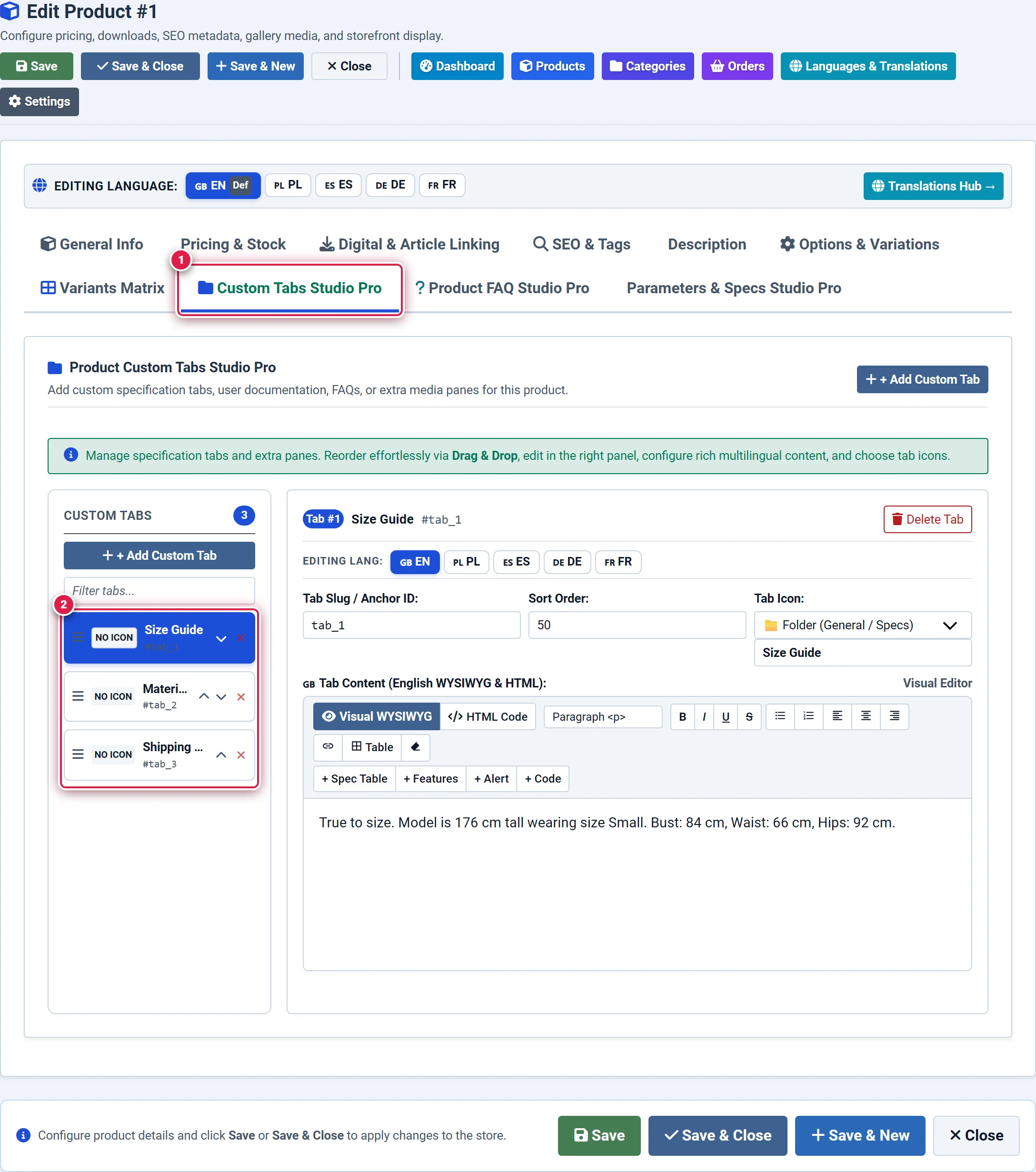
- Badge 1 — Custom Tabs Studio Tab: Activates the auxiliary content tabs workspace.
- Badge 2 — + Add Custom Tab Action: Appends a new custom tab container card to the product.
- Badge 3 — Tab Card & Rich-Text Editor: Configures tab title, sort order, and rich formatted HTML/media content.
4. Step-by-Step Configuration
Adding a New Custom Tab
Click the blue + Add Custom Tab button. You should see: A new tab configuration card expands with Tab Title, Ordering, and content area.
Setting Tab Title and Position
In the Tab Title field, enter the label that will appear in the storefront tab bar (e.g., Size & Fit Guide or Warranty & Returns). Set the numeric Sort Order (e.g., 1, 2, 3).
You should see: The card header updates to show the tab title.
Authoring Tab Body Content
Use the embedded rich-text editor to craft the content. You can insert sizing comparison tables, care instruction icons, or downloadable PDF links. You should see: Content is previewed directly inside the card.
Publishing and Saving
Verify the Published toggle is active (checked) and click Save in the top action bar. You should see: The new tab appears seamlessly on the storefront product page.
5. Field Reference
| Field | Description | Default | Notes & Limits | Edition |
|---|---|---|---|---|
| Tab Title | Customer-facing label in tab bar | Required | e.g. "Size Guide", "Care Info" | Pro / Ultimate |
| Sort Order | Numeric sequence among product tabs | 0 | Lower numbers display first | Pro / Ultimate |
| Content Body | Rich-text HTML content | Empty | Full HTML and table support | Pro / Ultimate |
| Published | Visibility toggle | Yes (1) | Temporarily hide without deleting | Pro / Ultimate |
| Tabs Limit | Maximum custom tabs per product | 10 in Pro | Unlimited in Ultimate | Pro: 10 / Ultimate: ∞ |
6. Storefront Result
On the storefront product page:
- Custom tabs appear seamlessly alongside native tabs (
Description,Technical Specifications,Reviews,FAQ). - Clicking a custom tab smoothly displays its content without page reloads.
- Fully responsive on mobile: automatically switches to an accordion presentation on small screens for optimal touch UX.
7. Tips & Best Practices
Custom tabs are the ideal location for apparel sizing tables. Create a clean HTML table with columns for Size, Chest (cm), and Waist (cm) rather than cluttering the primary product description.
While Pro allows up to 10 tabs, user experience research shows that shoppers rarely click past 4 or 5 tabs. Keep tabs focused and consolidated for best conversion rates.
8. Troubleshooting
| Symptom | Probable Cause | Recommended Resolution |
|---|---|---|
| Cannot add custom tabs (tab shows locked) | Store is running on Basic Starter license | Upgrade to Pro Commercial or Ultimate Enterprise to unlock custom tabs. |
| Custom tab does not show on storefront | Tab is marked as Unpublished (status 0) or content is empty | Edit the tab, ensure Published is toggled to Yes, add content, and save. |
| Mobile view tabs overlap | Tab titles are excessively long | Shorten tab titles to 2–3 words (e.g. "Size Guide" instead of "Complete Measurement and Sizing Fit Guide"). |
9. Related Documentation
- Tab 5: Description & Content: Manage primary product marketing body.
- Tab 9: Product FAQ Studio Pro: Add interactive accordion Q&A tabs.
- Custom Tabs Plugin: Global settings and display modes for product tabs.