Products List & Catalog Management
The Products List view provides a high-density, real-time command center for your entire store inventory. Store managers can monitor stock levels, filter by taxonomy categories, toggle publication states, reorder products via intuitive drag & drop, and access bulk spreadsheet editing.
1. Overview
From the Products List, store administrators can:
- Search & Filter: Instantly search by product title, alias, or SKU, and filter by status or category.
- Drag & Drop Reordering: Grab the handle icon (
.icon-move) to customize presentation order without manually entering numeric weights. - Batch State Operations: Publish, unpublish, or trash multiple items simultaneously using checkbox selection.
- Direct Excel Spreadsheet Access: Jump straight into Excel Bulk Manager Pro for rapid multi-row catalog updates.
2. Before You Start
- Permissions: User account must belong to a Joomla user group with
core.manageandcore.edit.statepermissions forcom_flexext_store. - License: Active commercial license key (or demo sandbox mode). If unlicensed, the list operates in read-only mode with action buttons locked.
3. Where to Find It
- Admin Menu:
Components ➔ FlexExt Store ➔ Products Catalog - Direct URL:
index.php?option=com_flexext_store&view=products
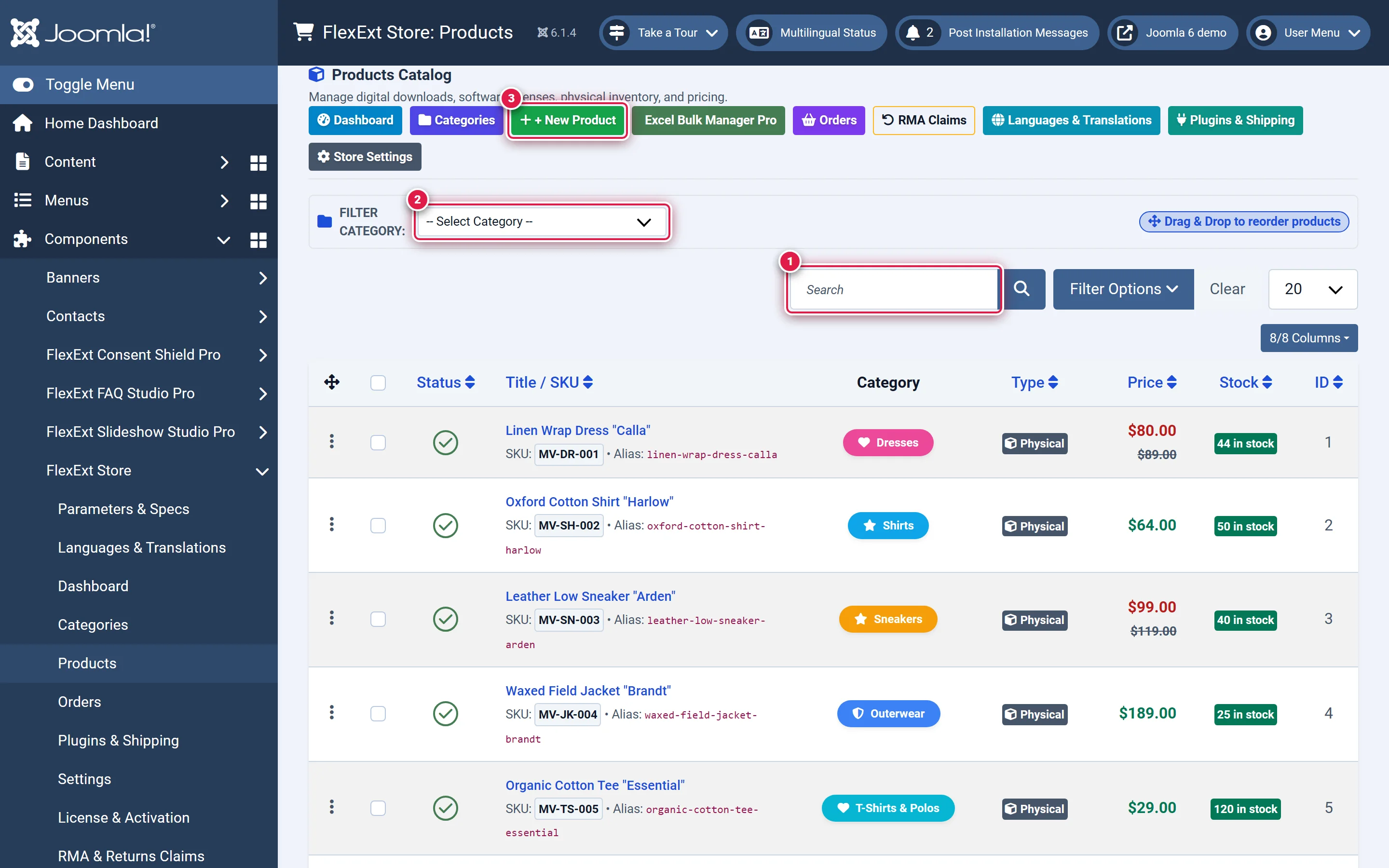
- 1 — Search by Title or SKU: Free-text search input filtering the catalog table in real time (
input#filter_search). - 2 — Filter Category: Taxonomy filter dropdown scoping rows to a specific category (
select[name="filter_category_id"]). - 3 — + New Product: Primary action button to create a new catalog item (
a.flx-admin-btn-newprod).
4. Step-by-Step Operations
Searching Products by Title or SKU (Badge 1)
Locate the search input labeled Search (marked 1). Enter a search keyword (e.g., Shirt or SKU-8941) and press Enter or click the magnifying glass button.
You should see: The table refreshes instantly showing only products matching the keyword in their title or SKU.
Filtering by Catalog Category (Badge 2)
In the filter bar directly above the table (marked 2), open the Filter Category dropdown (select[name="filter_category_id"]). Select a primary or subcategory.
You should see: The view reloads filtered to that category, and a Reset Category Filter button appears.
Creating a New Product (Badge 3)
Click the green + New Product button in the header toolbar (marked 3) to open the Product Editor workspace. You should see: The browser opens the Product Editor on the General Info tab with blank form fields ready for data entry.
Reordering Products via Drag & Drop
Ensure the list is filtered to a specific category. Hover your cursor over the drag icon in the leftmost column (span.icon-move). Click and hold, drag the row to its desired position, and release.
You should see: A green floating status toast appears in the top right: "Product order saved successfully!"
Batch Publishing or Unpublishing
Check the checkboxes on the rows you wish to modify, or click the master checkbox in the table header to select all. In the top Joomla action toolbar, click Publish or Unpublish. You should see: A confirmation message and the status icons in the Status column update to green checkmarks (published) or red circles (unpublished).
5. Interface & Control Reference
| Control / Column | Purpose | Default Behavior | Edition |
|---|---|---|---|
| + New Product | Opens the Product Editor with blank form | Creates new item | Basic |
| Excel Bulk Manager Pro | Launches high-speed spreadsheet grid editor | Opens modal editor | Pro / Ultimate |
| Filter Category | Filters catalog rows by assigned category | All Categories | Basic |
| Search Input | Free-text search matching title, alias, or SKU | Empty | Basic |
| Status Column | Clickable toggle icon to publish or unpublish item | Current status | Basic |
| Type Column | Indicates Physical, Digital, or Service item | Physical | Basic |
| Price Column | Formatted gross selling price | 0.00 | Basic |
| Stock Column | Inventory counter; displays badge if out of stock | Numerical count | Basic |
| 8/8 Columns | Toggle visibility of individual table columns | All visible | Basic |
6. Storefront Result
Changes made in the Products List take effect immediately across all storefront category views, search modules, and recommendation blocks:
- Unpublished items become instantly inaccessible to non-admin visitors (returning HTTP 404).
- Custom drag-and-drop sort ordering is respected when the category sort preference is set to Ordering / Position.
7. Tips & Best Practices
Drag & Drop reordering is enabled when filtering within a specific category. When viewing All Categories, global reordering is disabled to prevent conflicting cross-hierarchy positions.
Trashing or deleting a product that has existing customer order history preserves order records, but removes the product from customer re-order shortcuts. We recommend unpublishing rather than permanently trashing active catalog items.
8. Troubleshooting
| Symptom | Probable Cause | Recommended Resolution |
|---|---|---|
| Drag & Drop handle does not save order | User is viewing "All Categories" or list is sorted by another column (e.g. Price or Title) | Select a specific category from Filter Category and click the sort column header to reset sorting to Order. |
| Products list displays "Commercial License Required" | No license key has been entered in License & Activation | Enter your commercial license key under Components → FlexExt Store → License & Activation. |
| Product shows red "Out of Stock" badge on storefront | Stock column value is 0 or negative | Edit product and update inventory count in Pricing & Stock tab. |
9. Related Documentation
- Tab 1: General Info: Configure basic product information, category, and pricing.
- Categories Manager: Configure catalog tree structure and category SEO.
- Excel Bulk Manager Pro: High-speed spreadsheet batch editor.